FenomioStream Broadcaster is a broadcasting app for Windows and macOS with which we broadcast a live stream to the FenomioStream portal — from a webcam, from a shared screen or from both at once. It is the simplest way to broadcast to a stream.
Why the app and not your own streaming software
We can also broadcast to a stream from general streaming software, for example OBS Studio. That, however, we have to set up ourselves — enter the streaming server address and the stream key, put the picture together — and then switch the status of the broadcast with the buttons on the portal. FenomioStream Broadcaster does this for us:
- It is launched directly from the portal and takes over the server address and the stream key by itself; we do not enter anything anywhere.
- It starts, pauses and ends the broadcast on the portal by itself. The viewers see the player as soon as we press Start broadcast in the app.
- It puts the picture together by itself: a shared screen including the computer's sound, the camera in a corner of the picture, a blurred or custom background behind the speaker.
- It offers chat with viewers, live captions with translation into other languages (if the portal allows them) and, as a safeguard, local recording of the broadcast on our computer.
Who broadcasts with the app
- The author or editor of the stream — downloads and launches the app from the Streaming page, on the Broadcast from FenomioStream Broadcaster tab. The tab is only available for PUSH streams; for a PULL stream the portal pulls the picture itself from the source system and the app is not used.
- A guest without an account on the portal (for example a guest lecturer) — receives a link for the broadcaster by e-mail from the author of the stream. The link opens a page with the same two steps as on the portal: downloading the app and a button to start broadcasting. The link is valid for 7 days.
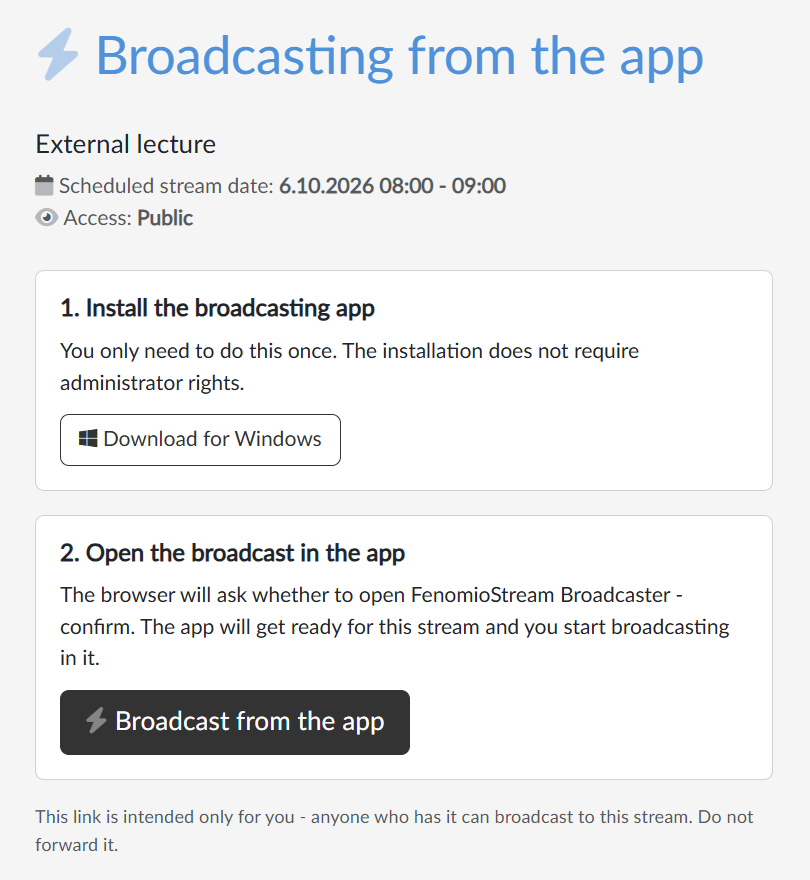
Installation and launch
- With the Download for Windows or Download for macOS button we download the installer and install the app. The installation does not require administrator rights.
 The Broadcast from the app button launches the app. The browser asks whether it may open FenomioStream Broadcaster. After we confirm, the app connects to the portal, loads the details of the stream and checks the connection to the server; once done, it shows the ready to broadcast status.
The app therefore always opens from the portal for one particular stream. For another stream we launch it again with the Broadcast from the app button of that stream.
What we find in the app window and how the broadcast goes from start to end is described in the Broadcasting article.