Introduction is the landing page of the portal — the place we get to by entering the portal address and at any time later with Introduction in the main menu. On the landing page the portal shows us what is new: live broadcasts that are running or are coming up, the latest from the channels we subscribe to, and the newest media on the whole portal.
Page layout
On the left there is the main menu, which we use to move around the whole portal; the icon  at the top left collapses the menu to leave more room for the content. Further along the top bar we see the field for searching
 , and on the right the Log in button — once we are logged in, we see our user profile here, a bell with notifications
  and a language switch.
In the main menu we first see the items that are available even without logging in: Introduction, Channels, and possibly Map or Articles. Once we log in, our personal items are added to them — My subscribed channels, My lists, Saved searches and Media history.
Content of the landing page
The content of the page is made up of three sections one below another:
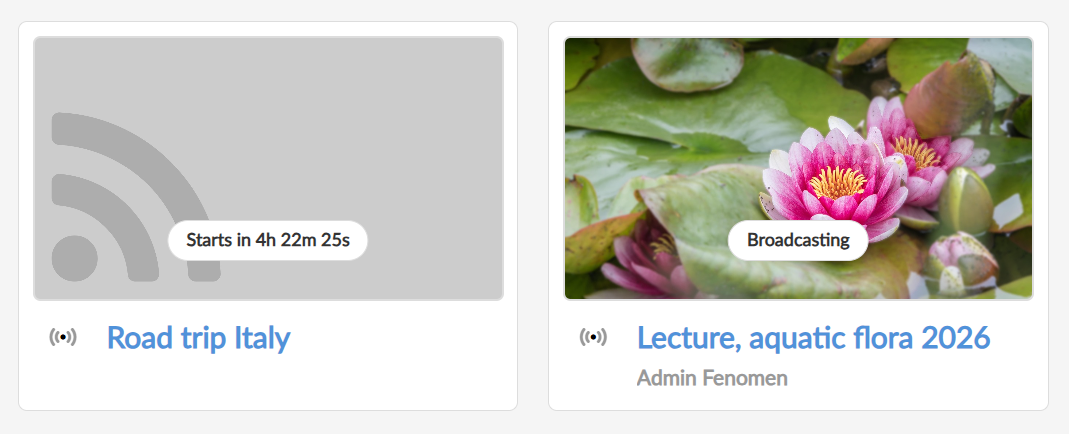
Current streams — live broadcasts that are running right now or are coming up. On the tile we see a countdown to the start of the broadcast.
Media from subscribed channels — the latest from the channels we subscribe to. We only see this section when logged in and only if we subscribe to some channel.
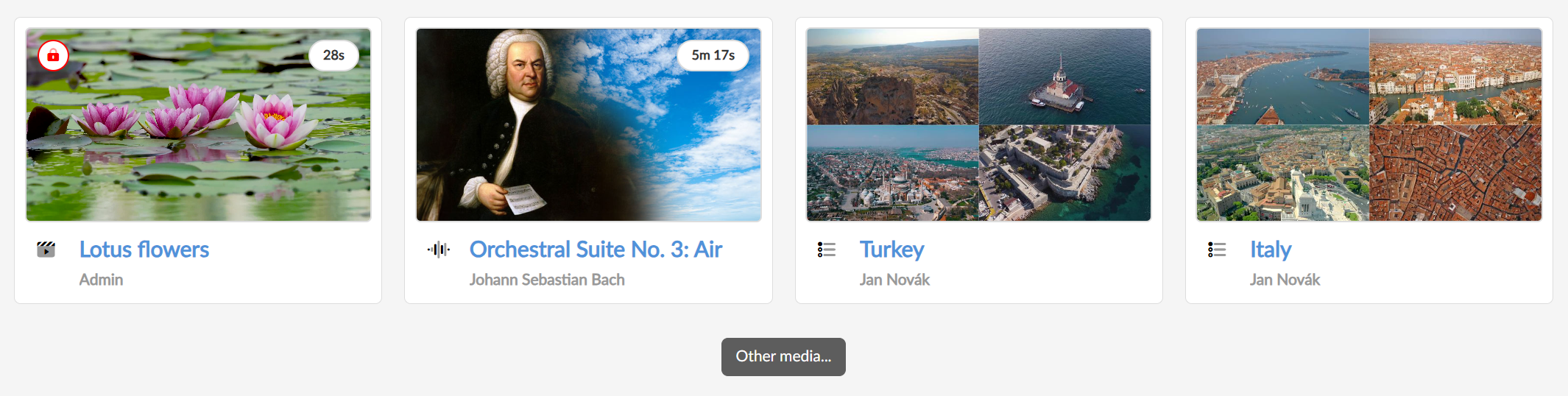
Latest media — the media published most recently on the portal. The Other media… button below them takes us to the page with searching.
What we see on a media tile
In the default view every medium is represented by a tile (a box) with a picture preview. In the corner of the preview we find the length of the recording (for a live broadcast a countdown instead of it). Below the preview we see the icon of the type — audio  , video
  , playlist
  or stream
  , the name and the author. The lock icon
  on the preview means that this is a protected medium. We can see it in the overview, but to play it the portal will require something of us — most often logging in, sometimes also membership of a particular group or access from the school network.
Display options
At the top right above the content there are three icons with which we switch the way the content is displayed. View – boxes  (large tiles next to each other) is on by default, and we can also choose View – extended
  (a preview with a description beside it) or View – table
  (rows with the name, the length and the author, the most media on one screen). Switching applies to all sections of the landing page.
When we log in
Without logging in we can watch public media on the portal and browse channels. Logging in gives us access to personal features: our own media lists, subscribed channels, saved searches, media history and access to protected media we are entitled to. We log in with the Log in button at the top right; depending on the portal settings either with a school account, or with a name and password, or with a Google, Facebook or Microsoft account.