By clicking a media tile on the Introduction page, in the search results or anywhere else on the portal we open its page with the player. Here we play video and audio, with a playlist we go through the individual parts one after another, and with a live broadcast we watch the transmission and can join in the chat.
The player
In the control bar of the player we have the option to move in time, to set the volume or to choose the playback speed. With video we can also set the picture quality and switch to full screen; when the medium has subtitles or chapters, their menus are in the player bar as well.
With the Switch cinema mode button above the player we stretch it to the full width of the page; another click takes us back.
Video with a presentation
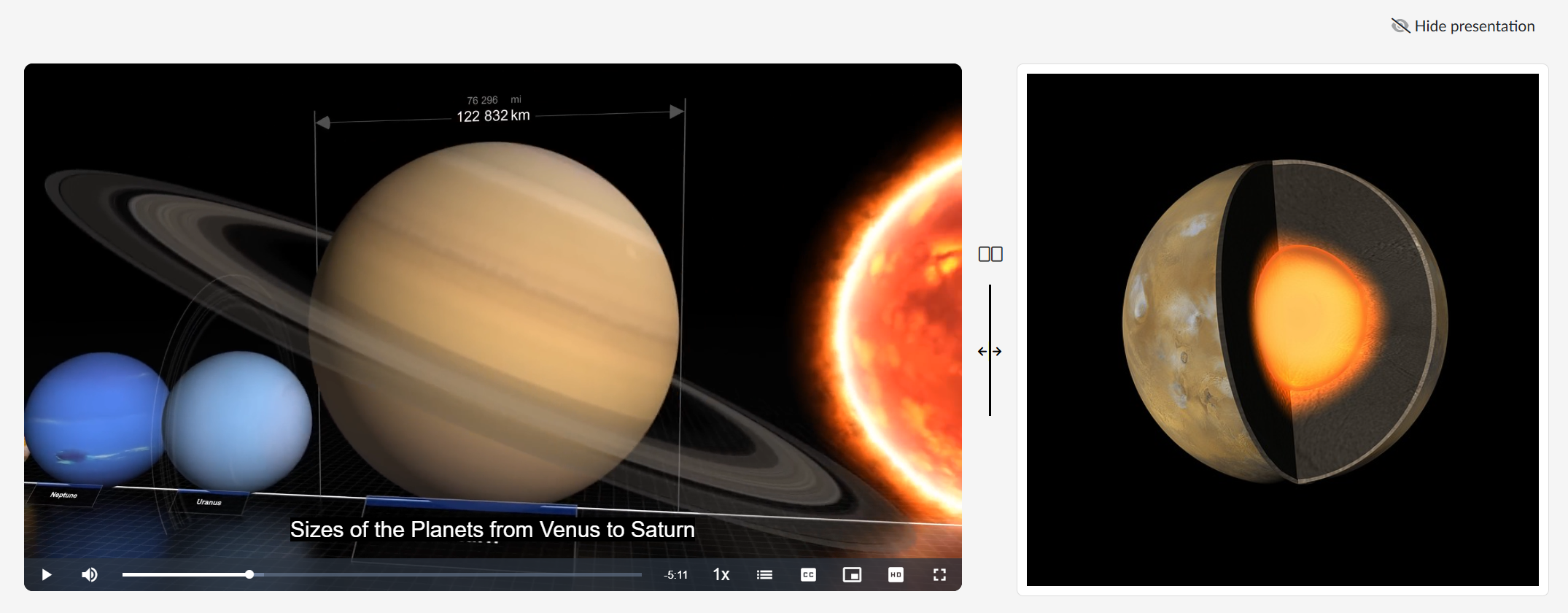
If the author has attached a presentation to the video, it is shown next to the player and the slides change at the set times according to what is happening in the video at that moment. By dragging the dividing line between the video and the presentation with the mouse we can adjust the ratio of their sizes, and with the icon  we return them to one half each. With the Hide presentation button we leave only the video on the page, Show presentation brings it back.
Information about the medium and its classification
Below the player we see the descriptive information — the name of the medium, the author, the description and the licences; with the arrow to the right of the name we collapse this part.
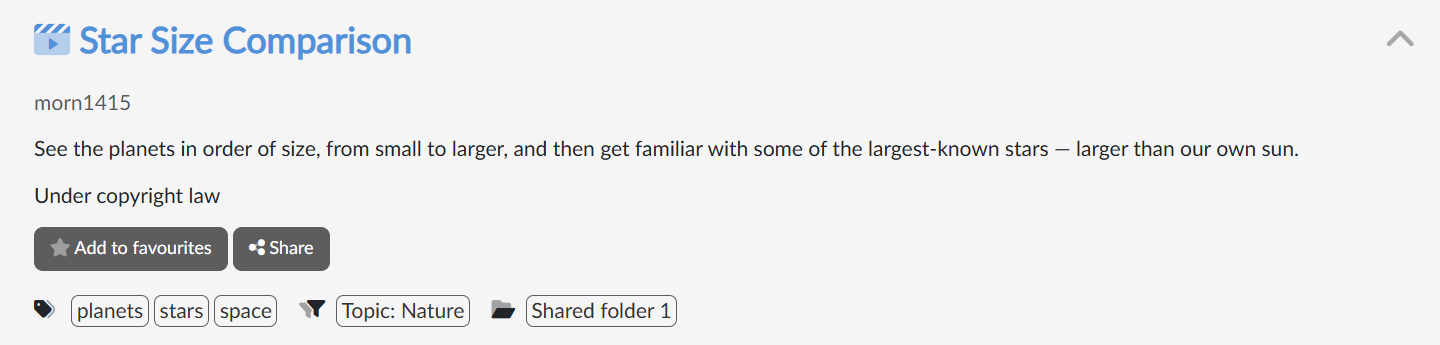
If we are logged in with a permanent account, the Add to favourites button puts the medium into My lists, or we can create a new list straight away.
The Share button offers the code for embedding the player on another website. We copy the code to the clipboard with the icon  .
.
If the portal allows it, we can Send by e-mail a link to the medium together with our message.
We also see the tags of the medium, its classification by criteria or its shared folder (clicking starts a search for other media with the same classification), or, for example, a link to the channel the medium belongs to.
Chapters, presentation and attachments
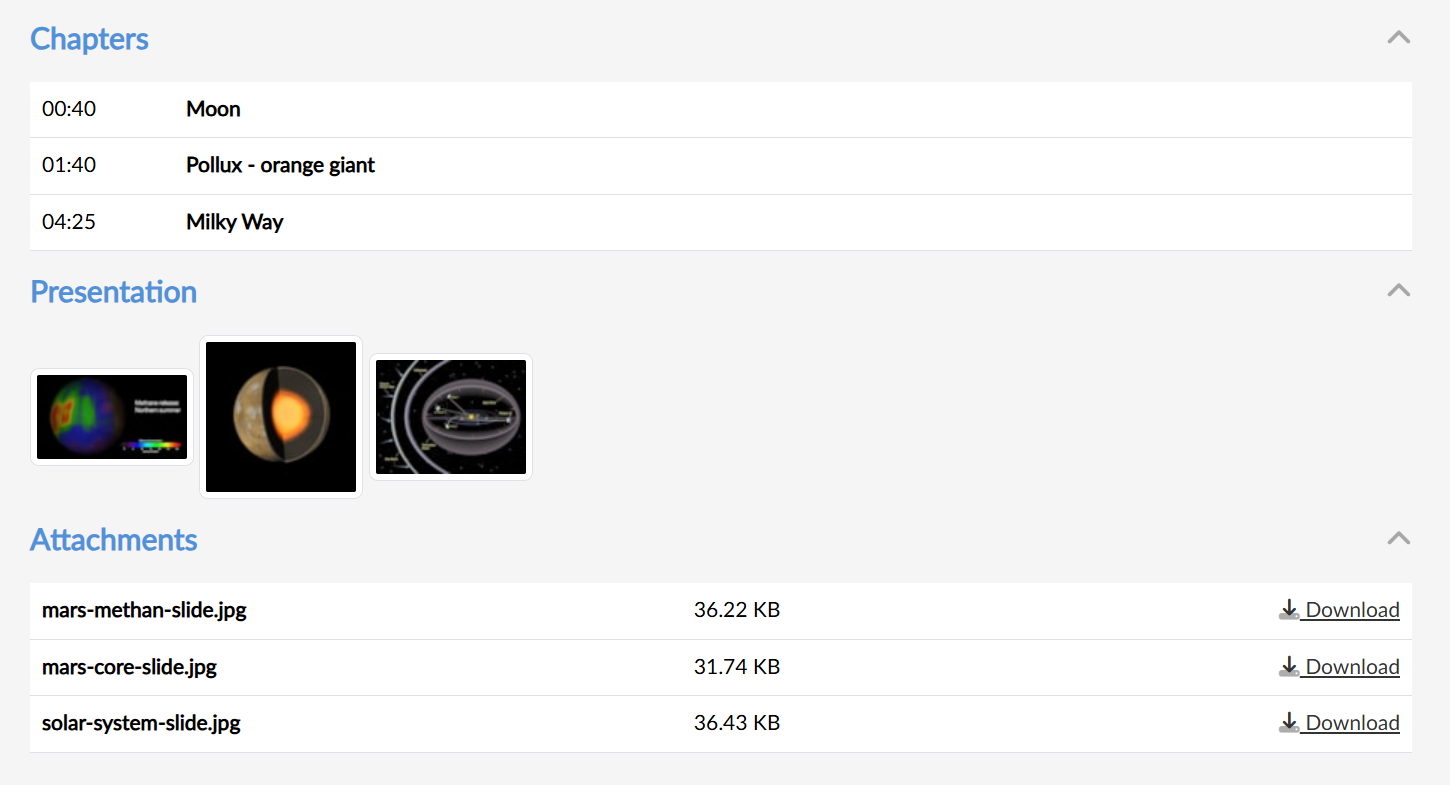
If the medium has chapters, a presentation or attachments, we find them below the description in separately expandable sections. By clicking a chapter or a presentation slide we jump to the relevant place in the playback, and we download attachments with the Download link.
Playlist
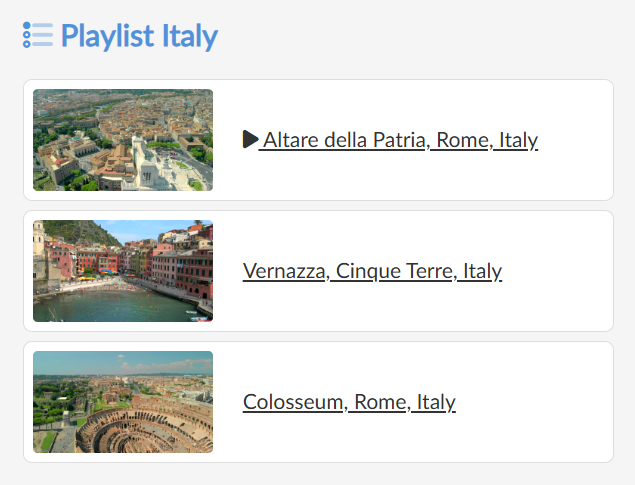
A playlist is a series of media that are put in order and follow one another. During playback we therefore see, to the right of the player, a list of the individual media included in the playlist.
The part currently being played is marked with the icon , and we switch to another part by clicking it in the list.
The moment one part finishes playing, the player automatically carries on with the next part in the order.
Live broadcast
The page of a live broadcast shows what state the transmission is in. Before it starts, The stream is not running yet, please wait… stands in place of the player — we do not have to refresh the page, as soon as the broadcast starts the player appears by itself.
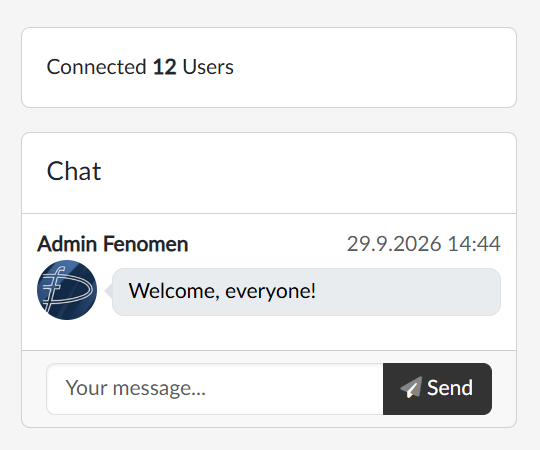
Below the player there is the name and the description of the broadcast, the start and end time and who is broadcasting. On the right we see how many viewers are currently Connected, and below that the chat, if the organiser has switched it on. We write a message in the Your message field and send it with the Enter key or with the Send button.
Once it is over, The stream has ended is shown; if the broadcast was being recorded, the portal adds The processing of the recording is in progress and the recording appears on the portal later as an ordinary medium.
When a medium does not play
 With a protected medium we do not have access to, a red frame with the reason is shown instead of the player. Most often it is You must be logged in to play the video — we then go straight to logging in with the Log in button and return to the medium afterwards. The author can, however, restrict playback in other ways too: only to members of a particular organisation or group of users, only to access from certain IP addresses (typically from the school network), or only to a certain period of time. In that case we turn with our question to the author of the medium or to the portal administrator.