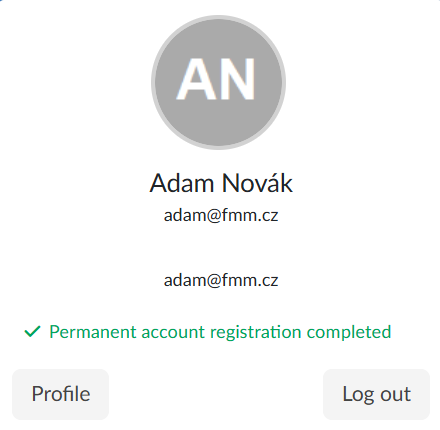
In the profile we manage our account on the portal — the name, the contact e-mail, the picture (avatar), the password and the security of logging in. We also find here an overview of where we belong on the portal: which organisation we are in, which shared folders we have access to and which teams and channels we are members of.
We open the profile at the top right in the menu under our name with the Profile option.
The content is divided into tabs. Some of them are only shown depending on how our account and the portal are set up — anyone who logs in with a school account does not see the tab for changing the password, and external login or two-factor authentication are only there where the portal offers them.

Profile
The first tab shows our Login and the Login method (login with name and password, or via EDUid / Shibboleth) and next to them the roles we have on the portal. In the form we edit our Name, Surname and Contact e-mail; we confirm the changes with the Save button.
On the right there is our user image / avatar. We upload a new one by selecting a file, and with the red button with a bin  we remove it again.
Change password
We enter the Current password, the New password twice and confirm with the Change password button. The tab is only seen by those who log in with a name and a password.
External login
Here we link a Google, Facebook or Microsoft account to our account so that next time we log in with a single click. With the Sign in with external account button we link the account, and with the Cancel signing in with external account button we undo the link again. Which services are on offer is determined by the portal.
Two-factor authentication
Two-factor authentication adds a second verification to the password, so that nobody who only knows the password can get to the account. There are two methods to choose from and with each of them we see whether it is active:
- verification via mobile application — with the Setting button we go to the page where we pair the application with the account,
- verification via e-mail — with the Setting button we switch it on, and the code is then sent to us by e-mail when we log in.
With the Deactivate button we cancel the verification again; the portal asks for confirmation first.
Organisation
An overview of the organisations we belong to on the portal. Membership of an organisation gives us access to the media that are protected for it, and it is set by the portal administrator — we do not change anything here ourselves.
Shared folders
A list of the shared folders we have access to, with their full name. Access is set by the portal administrator.
Membership in teams
A table of the teams we are members of, with the owner of the team and the status of the membership. When somebody has added us to a team and our agreement is awaited, there is an I agree button in the row, with which we confirm the membership. With the Leave team button we end the membership; the portal asks for confirmation first.

Channel team membership
The same for channels — the table also shows the name of the channel and the type of membership. We confirm a pending invitation with the Confirm button and end the membership with the Leave team button.

Delete account
The last tab contains the Delete permanent account registration button. The portal asks twice whether we really want to, and once we confirm it logs us out.