My lists are our own collections of media — into each of them we save what we find useful to have together, for example the materials for one subject or videos we want to come back to. The lists are seen only by us and one medium can be in several of them.
Browsing the lists
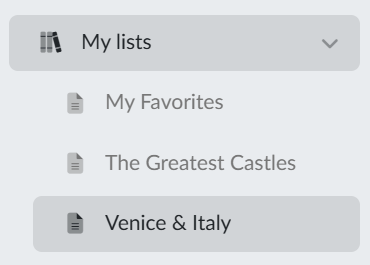
We find the saved media in the main menu under the My lists item. Clicking it expands it and shows all our lists; by clicking one of them we open the page with its content.
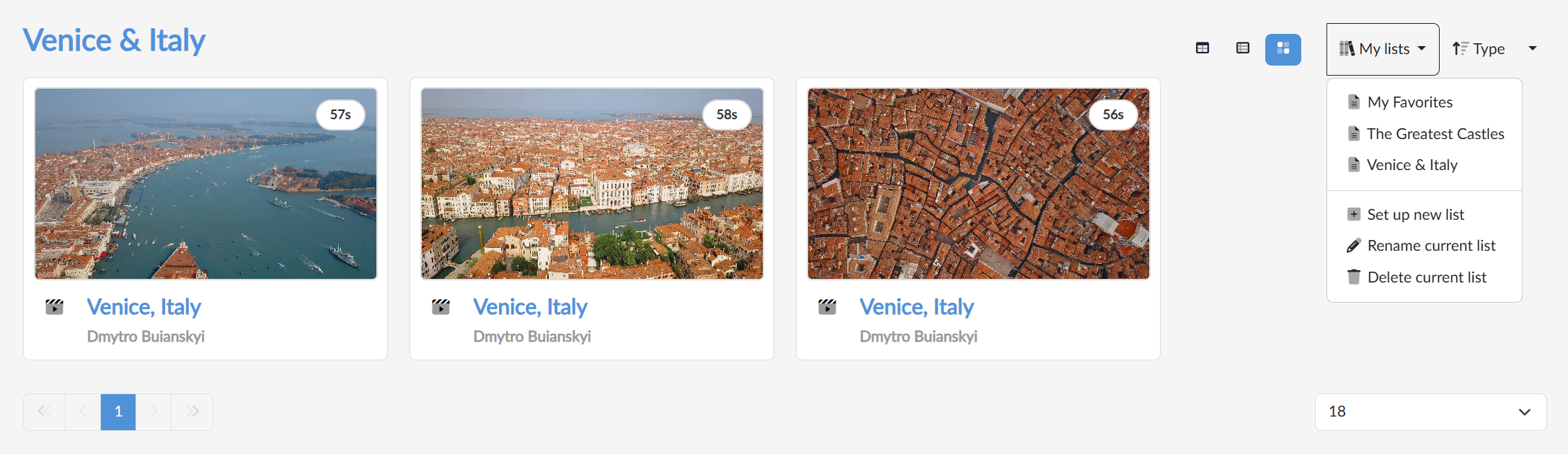
On the page of a list we see all the media included in it, by default shown as tiles with a preview. By clicking one we play the medium straight away.
Above the media on the right we switch the display — boxes  (large tiles next to each other), extended
  (a preview with a description beside it) or table
  (a compact display of rows with the name, the length and the author) — and next to them the sorting — by the date added to the list (the default, the most recently added media first), type, name, length or author; clicking the sorting button itself reverses its direction. Below the media there is paging and a choice of how many media are to be shown at once.
Managing the lists
With the My lists button above the media on the right we open the menu in which we switch between the lists and manage them:
- Set up new list — we enter a name and confirm with the Save button.
- Rename current list — we change the name of the open list and confirm with the Edit button.
- Delete current list — we delete the list. The media themselves are not deleted, they stay on the portal and in the other lists.
How we save a medium into a list
We add a medium to a list directly from the player, with the Add to favourites button below the name of the medium.
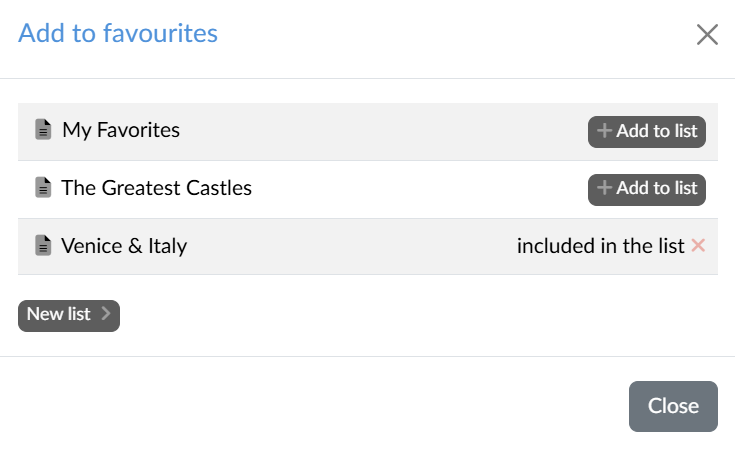
A window with our lists opens and next to the one we want to include the medium in we click Add to list. With the lists that already contain the medium there is the note included in the list instead of the button, and a cross with which we remove the medium from the list again.
We can set up a new list right here: with the New list link we expand the List name field, write a name and click Create list. We then add the medium to the new list with the Add to list button.