Part of the portal is public and we can go through it even without logging in. Logging in, however, opens up the protected media we are entitled to and the personal features — My lists, subscribed channels, saved searches and the media history. We log in with the Log in button at the top right.
How we log in
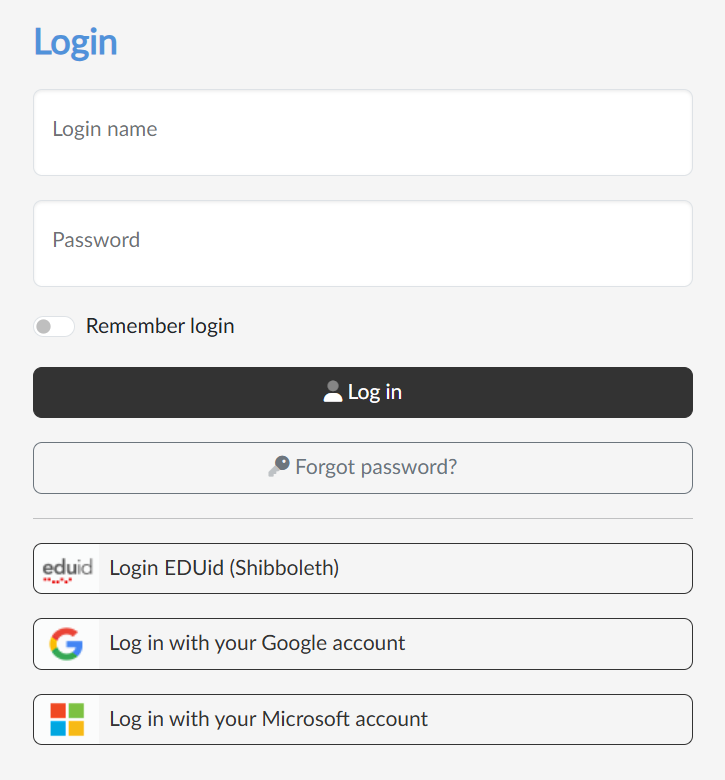
What the login page offers us is decided by each portal itself. Usually it is one of these options:
- a school account — login via EDUid / Shibboleth; the button carries the name of our school or organisation and we log in on its page, not on the portal,
- a login name and a password — we fill in both and confirm with the Log in button; with the Remember login checkbox we stay logged in even after closing the browser,
- a Google, Facebook or Microsoft account — with a single click on the button of the service concerned.
We log out in the menu under our name at the top right with the Log out option.
Forgotten password
With the Forgot password? button on the login page we open a form where we enter our e-mail and send the request for a new password. A link comes to our e-mail with which we set a new password. It only concerns accounts with a name and a password — anyone who logs in with a school account deals with the password at their school.
Types of accounts
There are three different roles we can move around the portal in, and what we have available differs accordingly:
- a visitor who is not logged in — sees the public media and channels, has no personal features,
- an anonymous login — the portal knows that we are allowed in, but does not know our identity. We recognise it by the note Anonymous user login in the menu at the top right. We do get to protected media, but we cannot have lists, subscribed channels or the history yet,
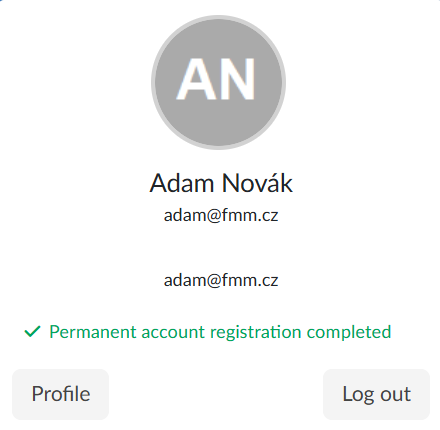
- a permanent account — a full account with its own profile and all the personal features. In the menu it says Permanent account registration completed.
Permanent account registration
From an anonymous login we set up a permanent account with the Register a permanent account option in the menu at the top right. The wizard has four steps:
- Terms and conditions — we read the terms of the portal and confirm them with the I acknowledge and agree to the terms and conditions button.
- E-mail — we enter a contact e-mail and send it with the Send verification email button.
- Verification code — we copy the code from the e-mail that has arrived into the Code sent field and confirm with the Register a permanent account button. If the e-mail has not arrived, we ask for it again with the Send e-mail again link.
- Done — the registration is complete and with the Home button we return to the portal.
A portal that allows it also offers a Registration button on the login page for setting up an account from scratch — we fill in the name, the surname, the e-mail and the password twice (at least six characters) and confirm with the Register button.