The search field is in the top bar on every page of the portal. We can search either by text or a part of it, or by filters — the type of medium, the criteria set up on the portal, a folder or a status. A combination of both is possible as well. The portal then shows the results on a separate page, where we can sort them and browse through them. A search we want to come back to can be saved once we are logged in.
Searching by text
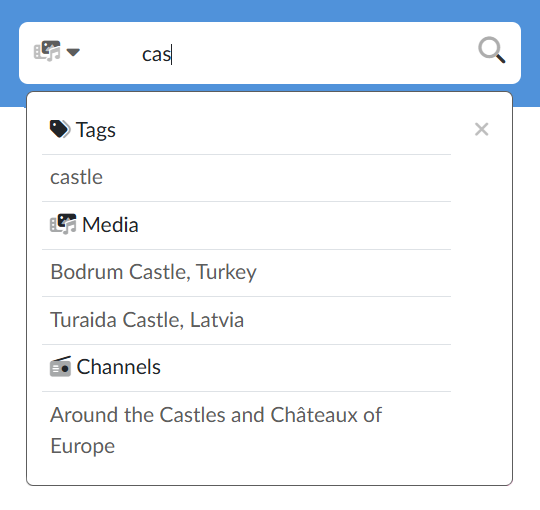
In the What are you looking for? field we type the search term and confirm it with the Enter key or by clicking the magnifying glass. The portal searches the name and the description of the medium, the names of the authors and the tags. We do not have to type whole words — a part of them is enough. When we enter several words (at most four), the media that contain all of them, in any order, are found.
As soon as we type at least three characters, a whisperer divided into Tags, Media and Channels appears below the field; we move around in it with the mouse or with the arrow keys. When we choose a tag, the search is narrowed down to exactly the media with that tag. When we choose a medium, its page opens straight away — so that media with the same name can be told apart, their length is shown in grey next to the name. Choosing a channel opens the channel page.
Search filters
With the arrow icon to the left of the search field we open the menu of filters:
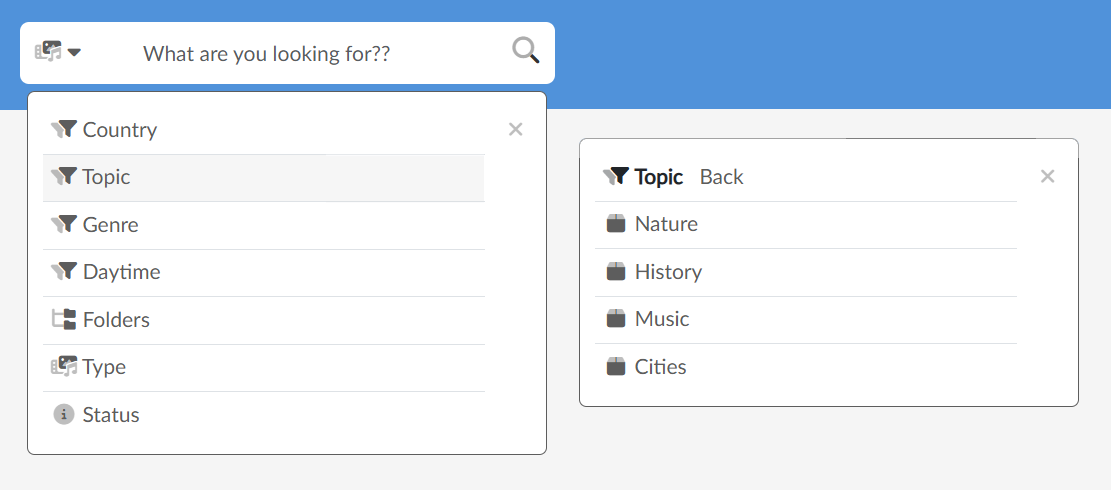
- Criteria
 — sorting by the criteria set up on the portal (for example Topic); once we choose a criterion, we select its value,
 - Folders
 — media from the selected folder; the item is only in the menu on portals that use folders,
 - Type
 — only video, audio, playlists or streams,
 - Status
 — with the Free media only option we hide protected media, marked with a lock
  .
.
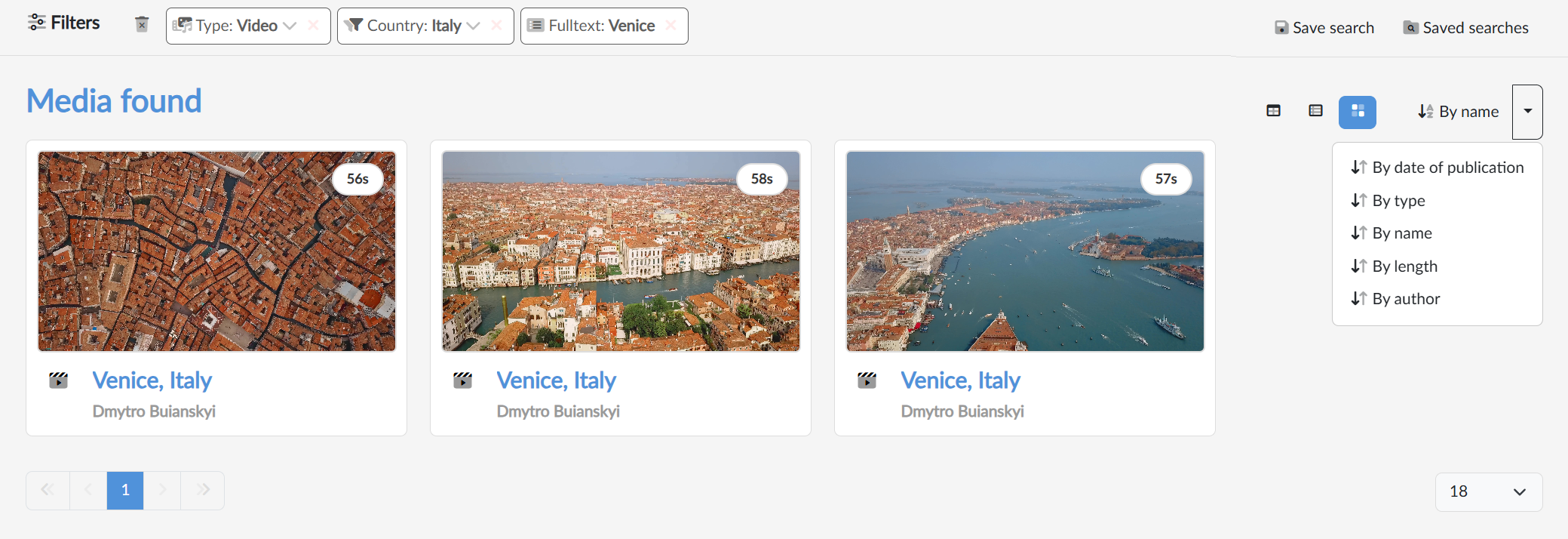
The filters we have set are shown in the Filters row below the top bar, together with the text we entered (as the Fulltext filter). The cross next to a filter removes it. With a folder, a type and criteria we can click the value with the arrow and choose a different one without cancelling the filter. With the bin icon  at the start of the row we cancel all the filters at once.
The search text and all the filters apply at the same time, so each additional filter narrows the results down. The exception are values of the same criterion: if we choose several values of one criterion (e.g. two faculties), it is enough for a medium to have any one of them. The selected tags, on the other hand, a medium must have all of.
Search results
Once we confirm the text or add a filter, the portal takes us to the results page. If nothing matches the search, the page reports Records not found.
Above the results on the right we switch the display — boxes  (large tiles next to each other), extended
  (a preview with a description beside it) or table
  (a compact display of rows with the name, the length and the author) — and next to them we set the sorting — By date of publication (the default, newest first), type, name, length or author. Clicking the button itself reverses the direction of the sorting.
Below the results there is paging and on the right a choice of how many media are to be shown on a page. With the Load more… button we add another page of results below the ones we already see, so that we can carry on browsing smoothly.
Saved searches
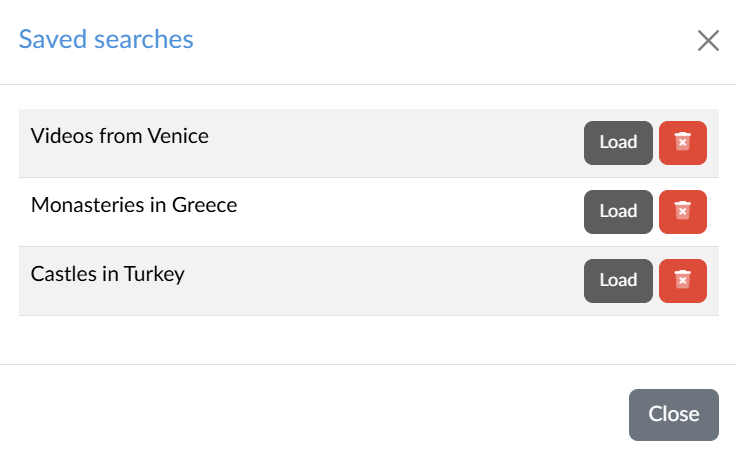
When we keep coming back to a particular search, we save it. With the Save search button in the row of filters we open a dialog, enter a name and confirm with the Save button. The whole combination of the text and the filters is saved.
We open Saved searches with the item of the same name in the main menu, or with the button in the row of filters. In the dialog the Load button replaces the current filters with the saved ones and gives us the results straight away; the bin icon deletes the saved search after we confirm it.