In the Articles agenda we manage the texts of the portal. There are two kinds: regular articles are standalone pages (about the portal, contacts, guides) that are offered to viewers in the main menu or in the footer; system articles are texts that the portal shows in fixed places — in the footer, in the notice at the top of the page and in the registration wizard. We open the agenda from the menu with Portal administration → Articles.
Each article is written in one language. On a multilingual portal we therefore create the same text separately for each language; viewers see the articles in the language they currently have selected.
The list of articles
The table shows the ID, system name, language and title of the article, followed by flags: whether it is a system article, whether it is visible, whether it is shown in the menu and in the footer, and, if set, the period of limited validity. We search by system name or title, and clicking a column header sorts the list.
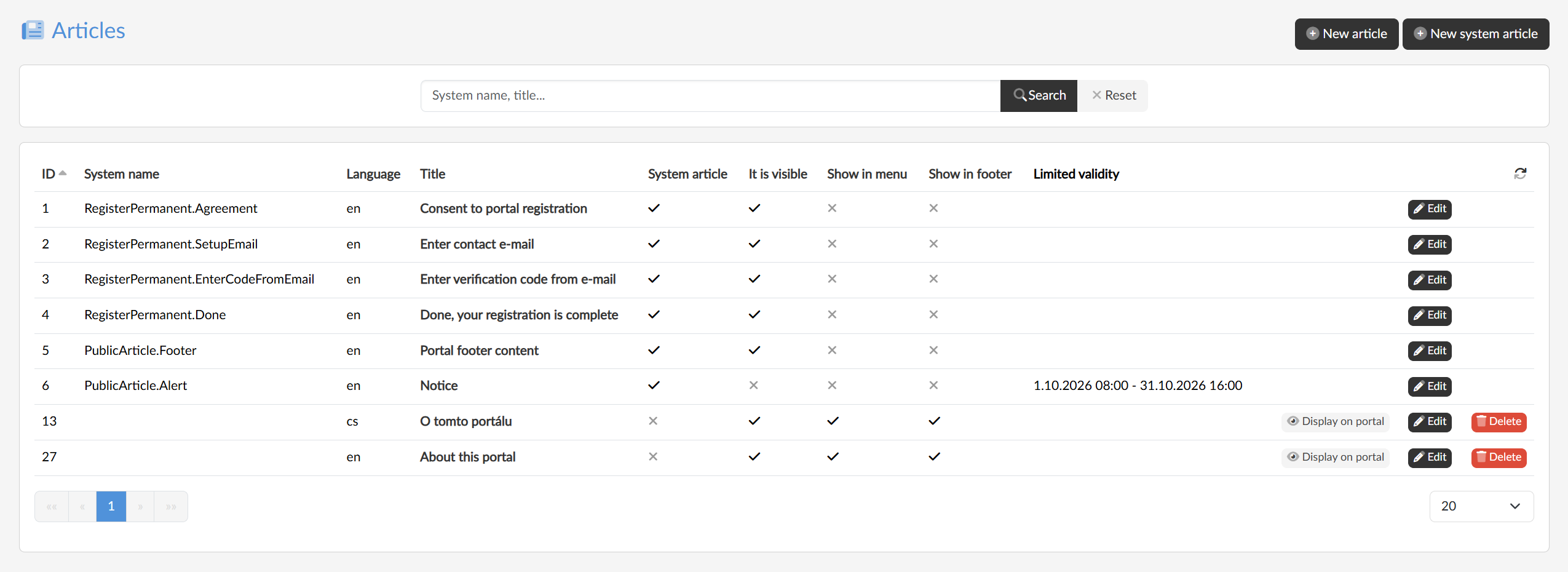
Clicking the title or the Edit button opens the article editing page. With the Display on portal button we open a regular article shown in the menu as viewers see it.
New article
With the New article button we create a regular article: we enter the title, select the language and confirm with the Create button. We add the text and the other settings in the editing.
New system article
With the New system article button we create a text for one of the fixed places of the portal. Besides the title and the language we choose the system name, which determines where the text is shown:
- PublicArticle.Alert — a notice at the top of every page of the portal;
- PublicArticle.Footer — the text in the footer of the portal;
- RegisterPermanent.Agreement — the first step of registering a permanent account, agreement with the terms;
- RegisterPermanent.SetupEmail — the step where the e-mail is entered;
- RegisterPermanent.EnterCodeFromEmail — the step where the verification code is entered;
- RegisterPermanent.Done — the final page after the registration is completed.
For each system name and language there can be only one article. The registration wizard is described in the article Login and account registration.
Deleting
We remove a regular article with the Delete button. System articles cannot be deleted — they have no such button.