In this agenda we manage the public templates of publishing and security — prepared media protection settings shared by the whole portal. Authors find them in the Apply template offers in the Public templates group, next to their own templates, which they create themselves. We open the agenda from the menu with Portal administration → Publishing and security templates.
The agenda works the same way as Publishing and security templates in Content management — that article describes where templates are used and how they behave when applied to a media file. Here we only describe how the administration of public templates differs.
The list and creating a template
The list contains all the public templates of the portal. Compared with the list in Content management, it has an extra Student column with a badge for the template intended for students.
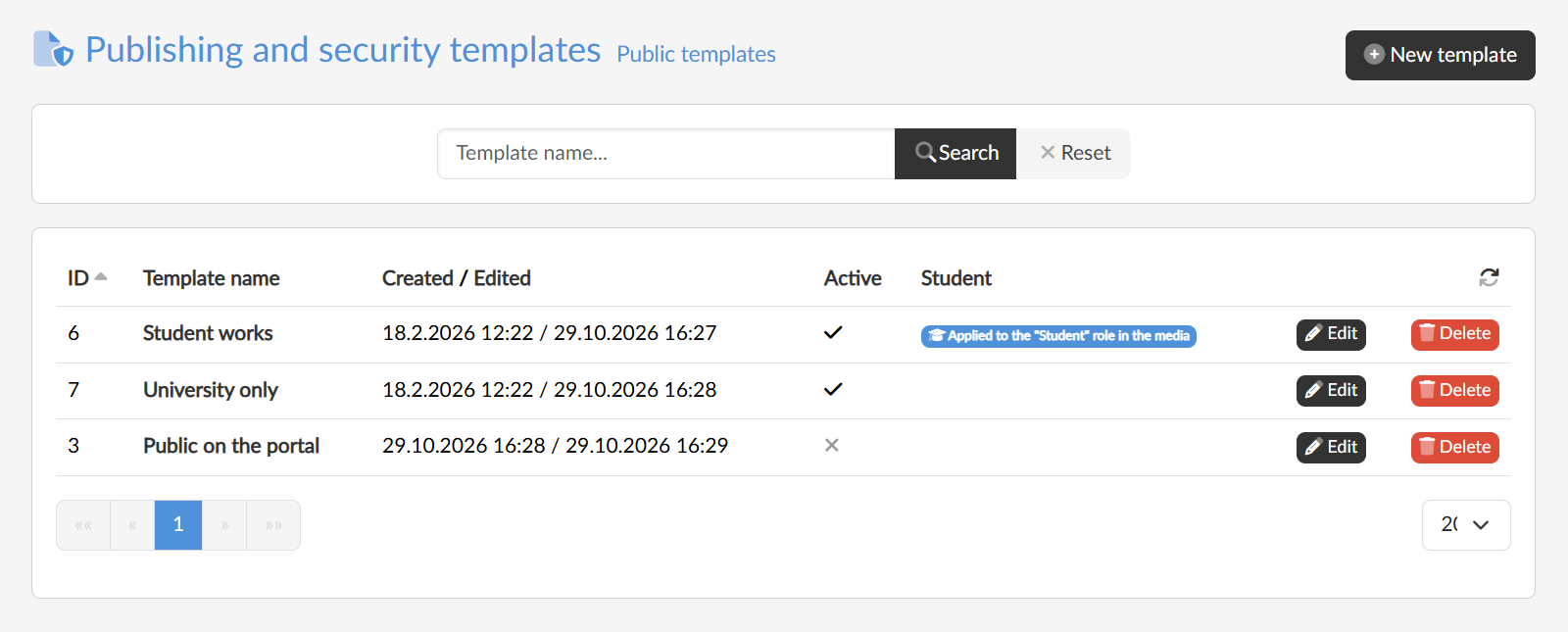
With the New template button we enter the template name, with the Active checkbox we decide whether it should be offered to authors straight away, and, if needed, with the Applied to the "Student" role in the media checkbox we mark it as the student template. The template is created with the default protection setting; we enter the rules in the template editing.
The template for students
A template marked as the student template is forced on students during upload: the student does not choose a template and cannot change the protection setting of their media file later either. With this template we therefore determine how all the media uploaded by students will be published. At most one template can be marked — ticking the checkbox for another one removes the mark from the previous one.