Optional labels are a second, separate set of tags alongside the regular tags. They differ in that we have to switch them on for the portal and can give the set a name of our own (for example Subjects or Projects). Authors assign them to media in the descriptive data in the same way as regular tags — they choose from the suggestions and can also enter a new label. So we can prepare the set in advance and maintain it in this agenda. We open it from the menu with Portal administration → Optional labels.
Switching on and naming
With the Enable the display of optional labels on the portal checkbox we switch the feature on and off for the whole portal; the change is saved immediately. When the checkbox is not ticked, the rest of the page is not shown and the optional labels field is not visible on the portal.
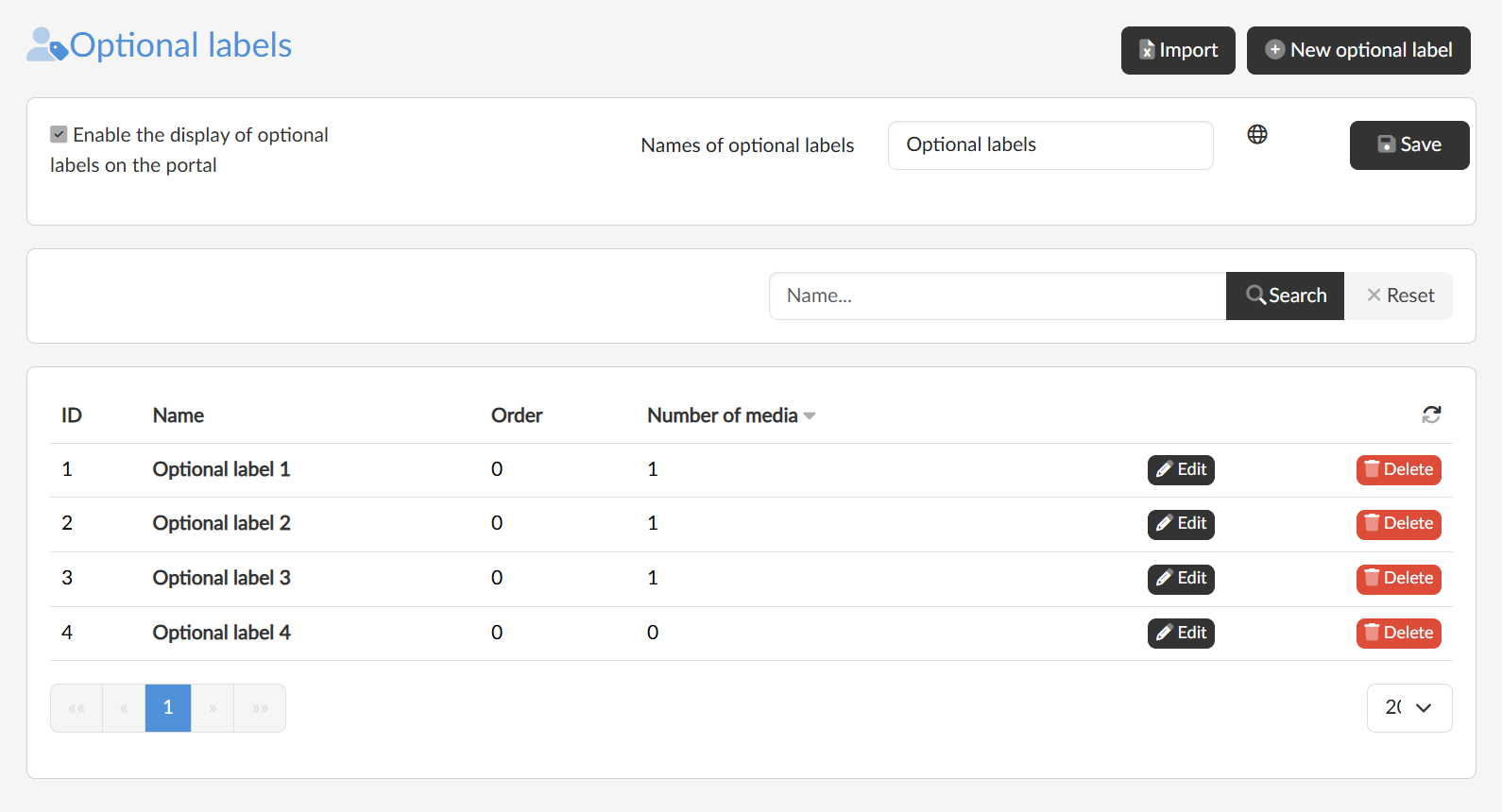
In the Names of optional labels field we enter what the set should be called on the portal and confirm with the Save button. With the globe icon  next to the field we add the name in the other languages of the portal.
The list and management of labels
The table shows the ID, name, order and the number of media that use the label; we search by name and sort by clicking a column header. With the New optional label button we create a label by entering its name and order, with the Edit button we change both and with the Delete button we remove the label after confirmation.
Import
We upload a longer list at once with the Import button:
- With the Export to Excel button we download a file with the existing labels — it has a single column, Name, and also serves as a sample.
- We add the new labels to the file, each on a separate row.
- We select the file in the upload field; the application checks it and lists the result row by row.
- If the check found no errors, we confirm with the Import button.