Shared folders are used for joint management of content: the media placed in a folder can be managed by every editor, redactor or student we have given access to the folder — regardless of who owns them. In this agenda we build the tree of folders and assign users to them. We open it from the menu with Portal administration → Folders.
Media are placed into folders by the authors themselves in the descriptive data of the media file.
Switching folders on for the portal
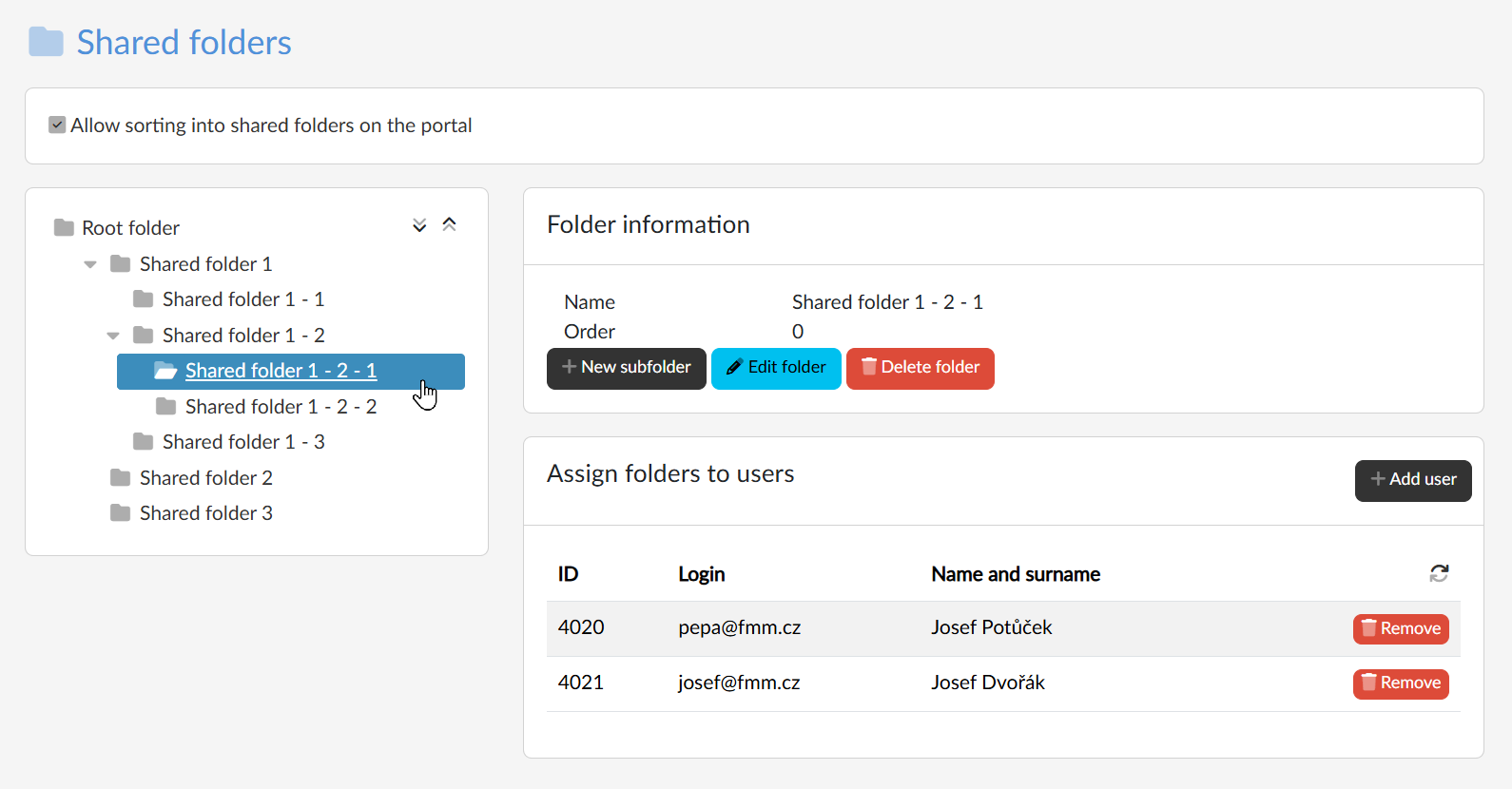
With the Allow sorting into shared folders on the portal checkbox at the top of the page we switch the feature on and off for the whole portal; the change is saved immediately. The tree of folders and the other parts of the page are only shown when the checkbox is ticked.
The tree of folders
On the left is the tree starting with the Root folder. Clicking a folder selects it, the arrow before its name expands or collapses it; the pair of icons at the top right expands  or collapses
 the whole tree. On the right, the Folder information card is shown for the selected folder, with the buttons:
- New subfolder — creates a folder below the one currently selected; if the root folder is selected, a first-level folder is created. We enter the name and the order by which the folders are sorted in the tree.
- Edit folder — changes the name and the order. With the globe icon
 next to the name we add the name in the other languages of the portal.
- Delete folder — the button is only available for a folder without subfolders.
Assign folders to users
The card below the folder information lists the users who have access to the selected folder (ID, login, name and surname). With the Add user button we open the Select users dialog, search for the users, tick them and confirm with the Select button; with the Remove button in the row we cancel the access.
Access to a folder also applies to all its subfolders. The user then sees the media from the folder in Media administration next to their own, and has an overview of their folders in their profile on the Shared folders tab.