Criteria are code lists by which media on the portal are sorted and searched. Each criterion has a name and a list of permitted values; authors choose from them when classifying a media file, and viewers are offered the criteria as filters when searching. We open the agenda from the menu with Portal administration → Criteria.
Criteria
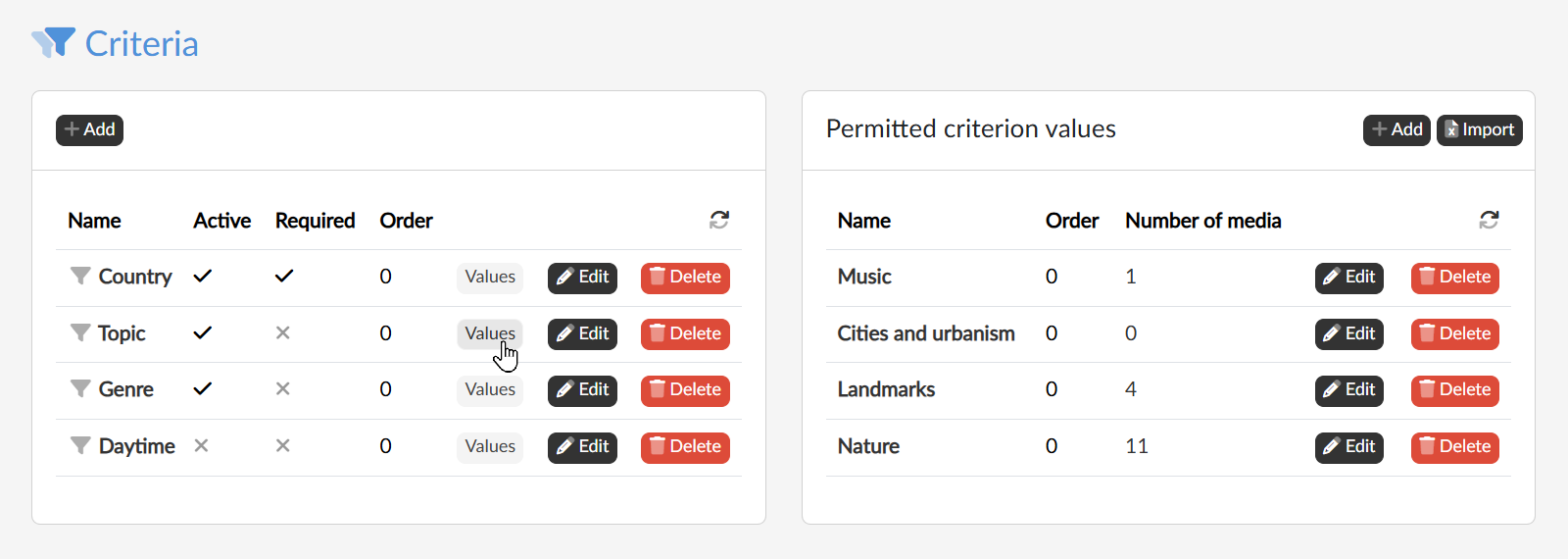
The left table lists the criteria of the portal. We create a new one with the Add button and open an existing one by clicking its name or with the Edit button. For a criterion we set:
- Name — when editing, we use the globe icon
 next to the field to add it in the other languages of the portal too;
- Active — an inactive criterion is offered neither to authors nor to viewers;
- Required — the author must select at least one value for the media file; in the descriptive data the criterion is marked with an asterisk;
- Order — the number by which the criteria are sorted.
With the Delete button we remove the criterion. Only a criterion without values can be deleted — so we first delete its values, or instead of deleting it we just switch it off with the Active checkbox.
Permitted criterion values
With the Values button in the row of a criterion we show its values on the right: the name, the order and the number of media that use the value. Clicking the number takes us to Media administration with a list of these media.
We add a value with the Add button (name and order), edit it by clicking its name or with the Edit button and remove it with the Delete button. The name of a value can also be translated into other languages when editing.
Importing values
We prepare a longer code list or its translations in Excel and upload it with the Import button above the table of values:
- With the Export model excel button we download a sample file that shows how to fill in the table correctly. It contains the existing values of the criterion — each has one row for every language of the portal.
- We edit the file. The columns are Id (0 for a new value, its number for an existing one), Language (the language code, e.g. cs or en), Order and Name.
- We select the file in the upload field; the application checks it and lists the result row by row.
- If the check found no errors, we confirm with the Import button.