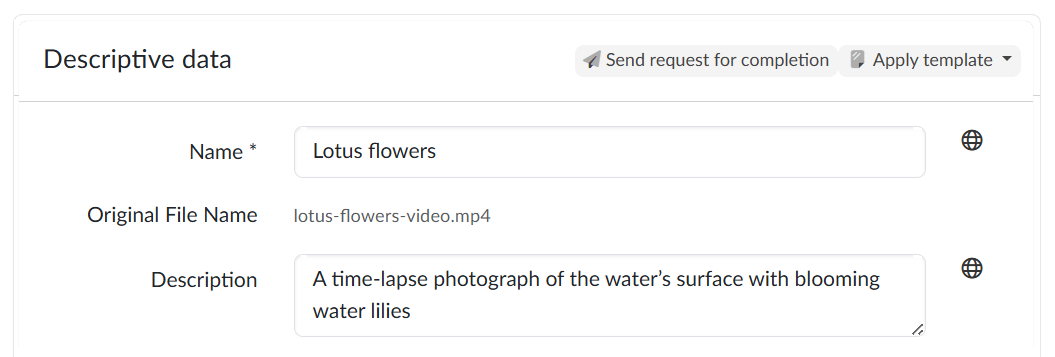
Descriptive data are the main tool for making a media file findable on the portal. Whether the data have to be filled in is configured by the administrator separately for each portal, and the items defined as mandatory are marked with * in the form.
Descriptive data
On the left-hand side of the screen we see the form for entering the textual descriptive data; the globe icon next to a text field opens a dialog for entering localised versions of the texts.
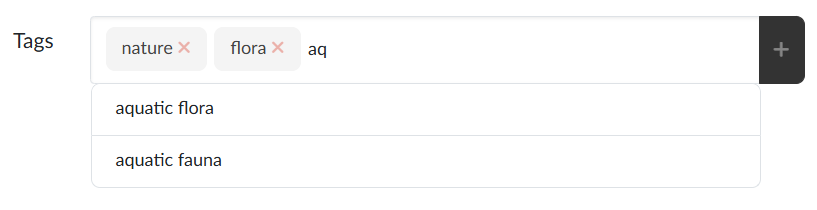
The field for entering tags works in a special mode: after we type the second character it activates a whisperer that suggests the names of tags already established in the database of the given portal. We create a new tag by entering its name and adding it to the list with the + button. A separate set of (optional) tags for authors to use can be prepared in advance by the portal administrator.
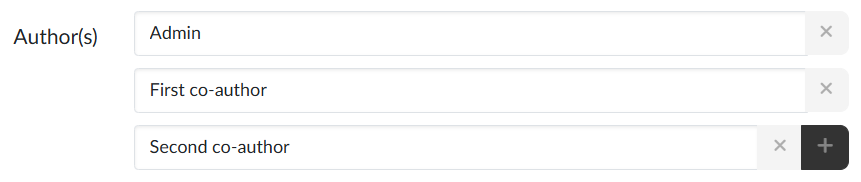
Another field that creates a structure is the Author(s) field, which makes it possible (with the + button or by pressing Enter) to add further rows and thus build a list when there is more than one author.
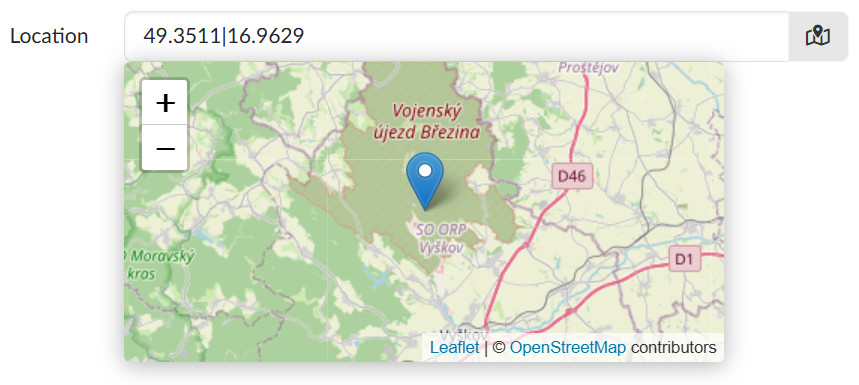
The form can further contain Optional tags, the Author’s e-mail and Author’s workplace, the Licence of the media, its Year of publication, or for instance the Location related to the media on a map. Which fields are offered may differ from portal to portal; some are shown only if the portal has them switched on.
We save the filled-in form with the Save button, or with Save and close, which takes us back to the media listing.
Applying a template
One of the templates prepared on the portal can be applied to the descriptive data of the file with the Apply template button in the header of the form.
Request for completion of the data
If the logged-in user is someone other than the editor of the open media file (typically an administrator or a redactor, but also an editor to whom the media is available through a shared folder), they have the Send request for completion button available, which sends a request to the editor/owner of the media file. It reaches them as a system notification and an e-mail — depending on how they have their notifications set up.
Sorting
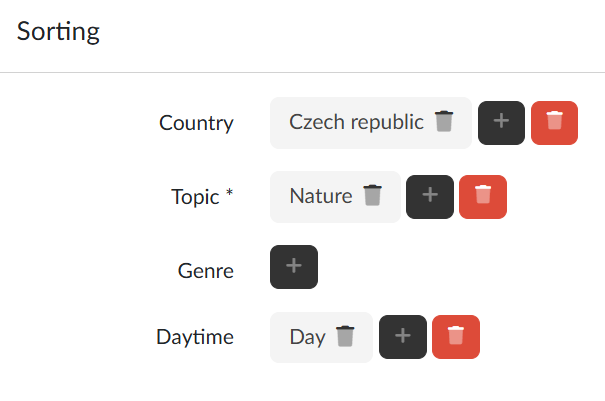
On the right-hand side of the screen we can sort the media file into the search criteria defined by the portal administrator. To define a virtually unlimited number of criteria, the portal administrator has a separate agenda available, where they define both the name of the criterion and its permitted values.
The search criteria are available to the users of the portal as independently working search filters. A media file can have more than one value of a particular criterion assigned to it. If filling in one of the criteria is mandatory, this requirement is marked with *.
Shared folder
A media file can optionally be placed into the tree structure of folders created on the portal, again by its administrator; it can always be placed into one folder, with the Assign folder button. These folders can serve either only for sorting media, similarly to the search criteria, or, if the administrator has defined the assignment of users to the folders, they represent another option for teamwork on the portal, where the users assigned to a folder can manage all the media files placed in it, regardless of their owner/editor.