A publishing and security template is a prepared protection setting of a media file — the protection level and the rules that belong to it (allowed organisations, IP rules, user lists, external servers, the time period). We manage our own templates in the menu under Content administration → Publishing and security templates; they can be used in the following places
- before uploading new media files (on the Upload video/audio page) in the Use the publishing and security template selector — the chosen template is applied automatically to all the uploaded files
- while uploading a media file, in the dialog (on the Upload video/audio page) with the Apply a publishing and security template button — the chosen template is applied once to the file in question and its name is shown next to the Template Used value
- in the media detail on the Publishing and security tab with the Apply template button above the protection level selection
- in Media administration as a bulk operation (Bulk actions → Bulk application of publishing and security templates) — the template is applied to all the selected media files
The listing of templates
In the listing we see our own templates. Above the table there is a field for searching by name and a Reset of the search and of the sorting of the table columns, and below it we see the number of records found.
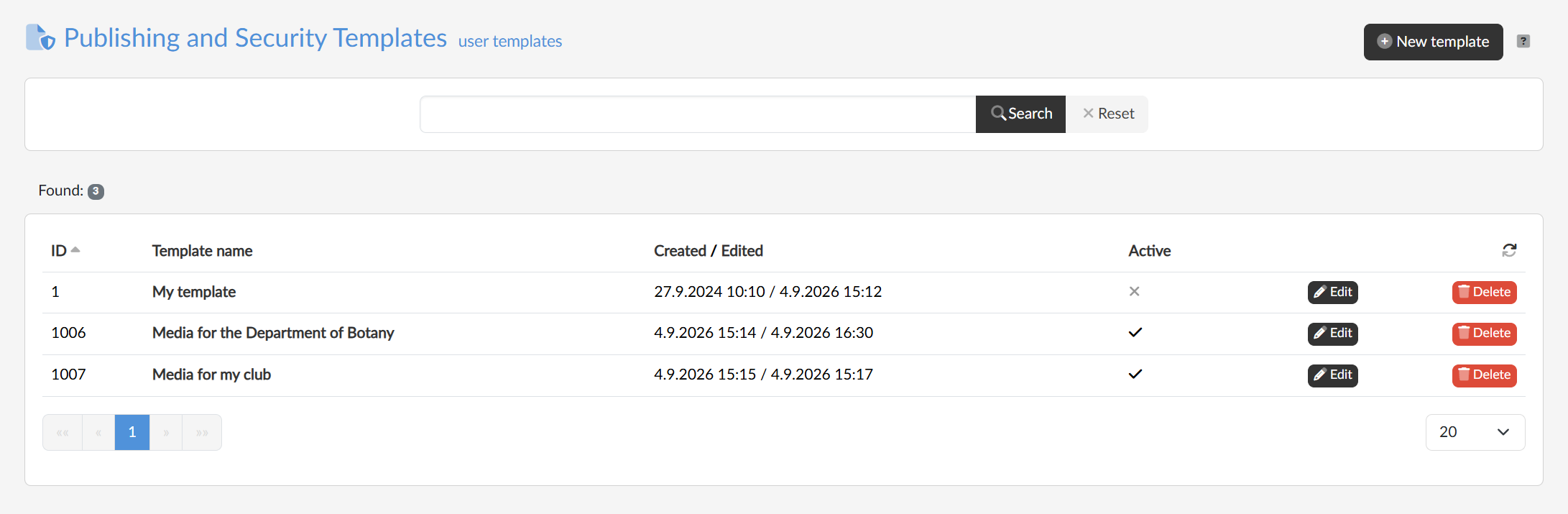
The table shows the ID, the name of the template, the dates of creation and last edit and the Active flag; clicking a column header sorts the listing. Clicking the name of the template or the Edit button opens template editing, and the Delete button removes the template.
Setting up a new template
We set up a new template with the New template button in the top right. In the dialog we enter the Template name, under which we will be choosing it, with the Active checkbox we decide whether it should be offered for use straight away, and we confirm with the Create button. The template appears in the listing with the default protection setting; we write our own rules into it only in template editing, which we open with the Edit button.