The Media administration agenda is the main tool for managing media files on the portal — we find all the media we have access to there, and from there we get to editing them. We open it from the menu with Content administration → Media.
The media listing
Which records we see depends on the role of the logged-in user
- An editor manages only their own media files, plus files from shared folders
- A redactor manages their own files, files from shared folders and the files of their team of editors
- An administrator manages all files on the portal
Above the table we have the My media / All media and All / Video / Audio switches, next to them a search field where we choose which value is searched. The arrow button  on the right expands further filters (folder, status, protection, editor and the criteria set up by the portal administrator); the Reset button returns the filters to their default state.
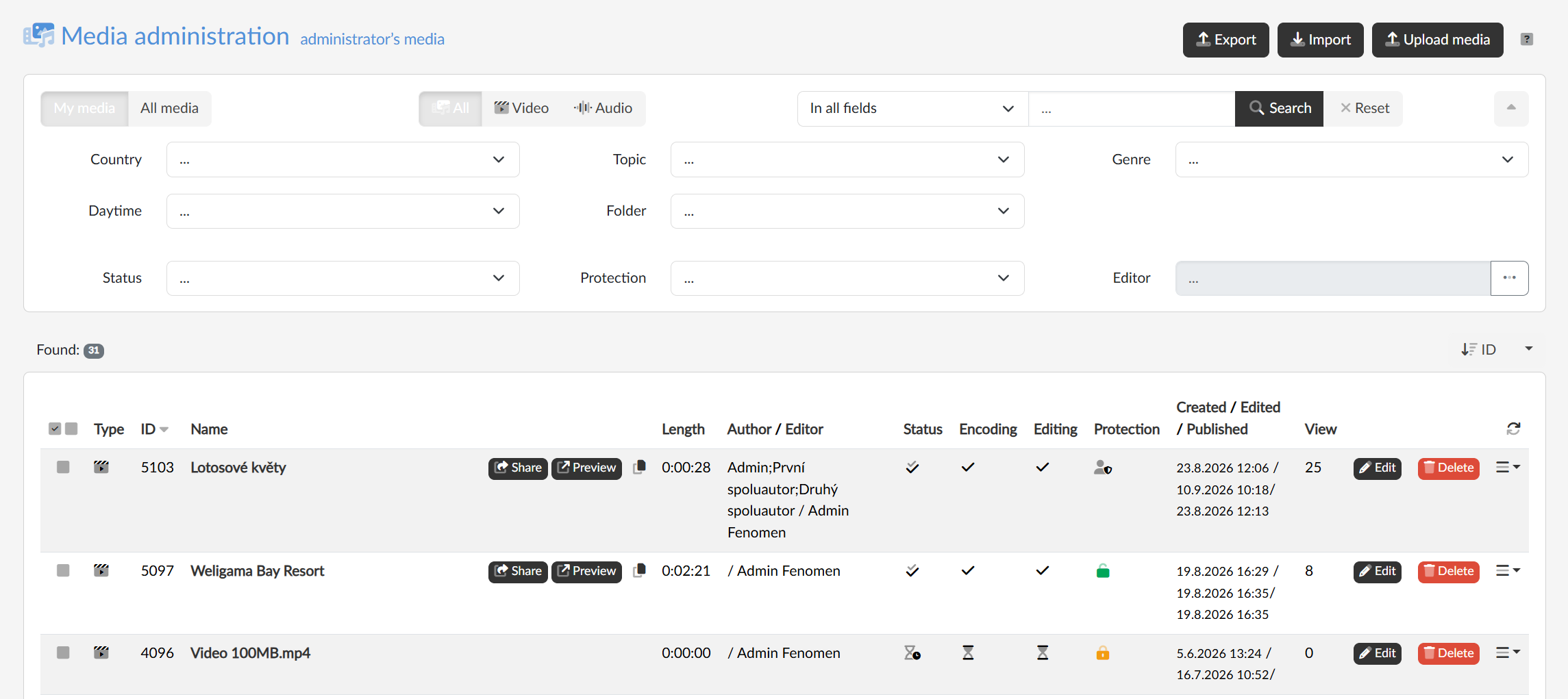
The listing in the table can be filtered and sorted by practically every visible attribute of the media. We particularly recommend paying attention to the Status column, which indicates whether the media file is ready for playback  , or whether the process has not finished yet
  . The neighbouring Encoding and Editing columns then indicate whether the system is waiting for the encoding of the media to finish, or for the mandatory information in the descriptive data to be filled in. The Protection column shows the current state of publishing and security
  . Hovering over the icons displays what each of them means exactly.
If the media file is ready for playback, the table offers a Preview button leading straight to the public page of the media, an icon that copies its address to the clipboard  and a Share button, which offers both the link to the media page and the code for embedding the media into a third-party page.
The properties of individual media files are edited mainly on the detail pages, which we open with the Edit button or by clicking the name of the media; the listing itself offers the Delete button, and under the menu icon  there are
- the operation for changing the editor of the file,
- changing the folder,
- and a tool for moving the media file between portals.
The first column of the table also offers a checkbox that includes the record in the row among the bulk operations, where it is possible to do the following for several files at once
- change the protection level,
- change the editor of the file,
- change the folder,
- move the files to another portal,
- apply a descriptive data template,
- apply a publishing and security template,
- and, if the portal has media approval switched on, change the approval.
The bulk actions menu appears as soon as we select the first record; next to it we see the number of media found and the number selected, and the Show only selected items checkbox limits the listing to them.
In the top right there are the Upload media (goes to the upload page), Export (saves the descriptive data of the currently filtered media into an .xlsx workbook) and Import (reads the descriptive data back from .xlsx) buttons. The pair thus serves for bulk editing of descriptive data outside the portal: we export a selection, edit it in a spreadsheet application and import it back.