In the Channels agenda we manage existing channels and set up new ones. We find it in the menu under Content administration → Channels.
A channel is a dedicated (sub)page of the portal on which a user can publish media that can form thematically related content, or content selected by another criterion, published in one place, with a simple internet address and the option of branding.
Users with a permanent registration on the portal can then “subscribe” to a channel — which means that they are notified about newly published media on the channel on the home page of the portal.
For a channel, the owner can define a Community of users who can publish media, or manage the channel itself directly.
The channel listing
In the listing we see the channels we own ourselves and the channels in whose community we are a confirmed member; the portal administrator sees all the channels on the portal. Above the table there is a field for searching by name with the Search and Reset buttons, and next to the listing the number of records found.
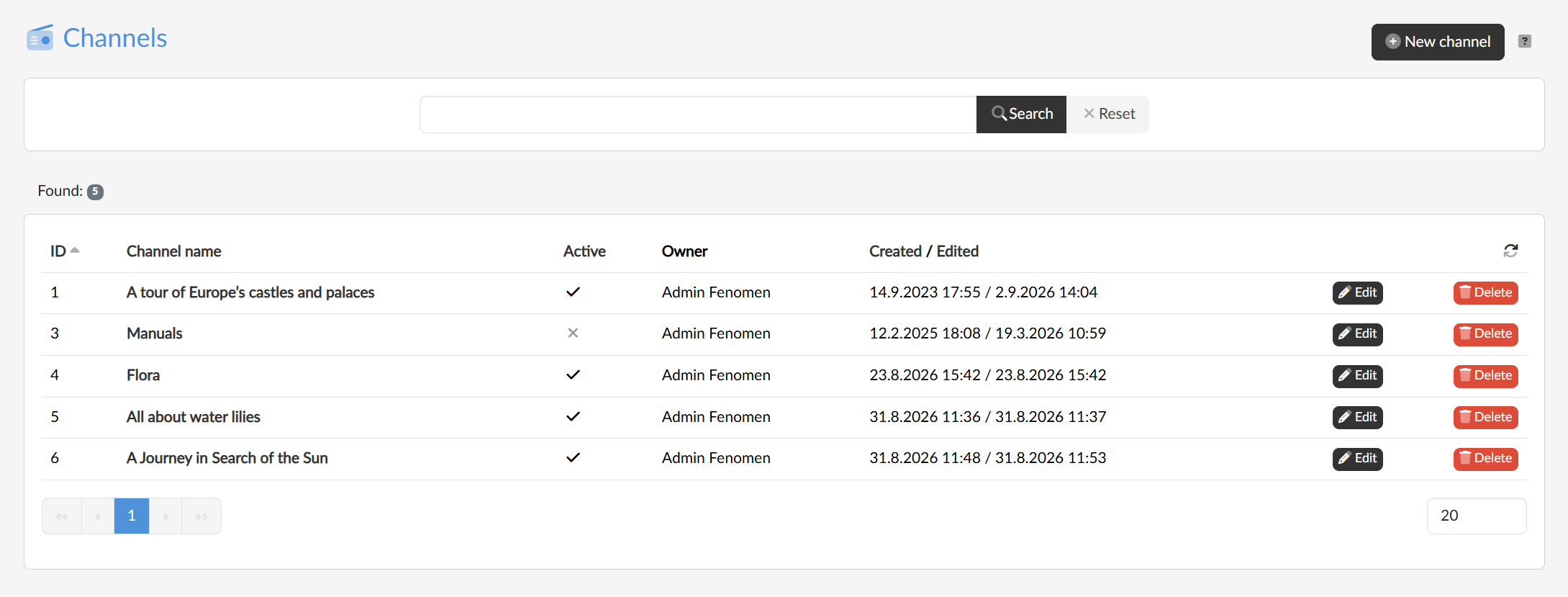
The table shows the ID, the channel name, whether the channel is Active , its owner and the dates of creation and last edit; clicking a column header sorts the listing. Clicking the name of the channel or the Edit button opens the channel detail, and the Delete button removes the channel.
Setting up a new channel
We set up a new channel with the New channel button in the top right. The dialog has two fields:
- the Channel name, under which the channel will appear on the portal,
- the Channel SeoUrl, that is, the part of the internet address the channel will run on. With the Suggest SeoUrl by name button we let the address be derived from the name.