A descriptive data template is a prepared set of descriptive data of media files. We manage our own templates in the menu under Content administration → Descriptive data templates; they can be used in the following places
- before uploading new media files (on the Upload video/audio page) — the chosen template is applied automatically to all the uploaded files
- while uploading a media file, in the dialog (on the Upload video/audio page) — the chosen template is applied once to the form in question
- when editing the descriptive data record in the media detail (on the Content administration → Media → Edit → Descriptive data tab) — the chosen template is applied once to the form in question
- in Media administration as a bulk operation (on the Content administration → Media page) — the template is applied to all the selected media files
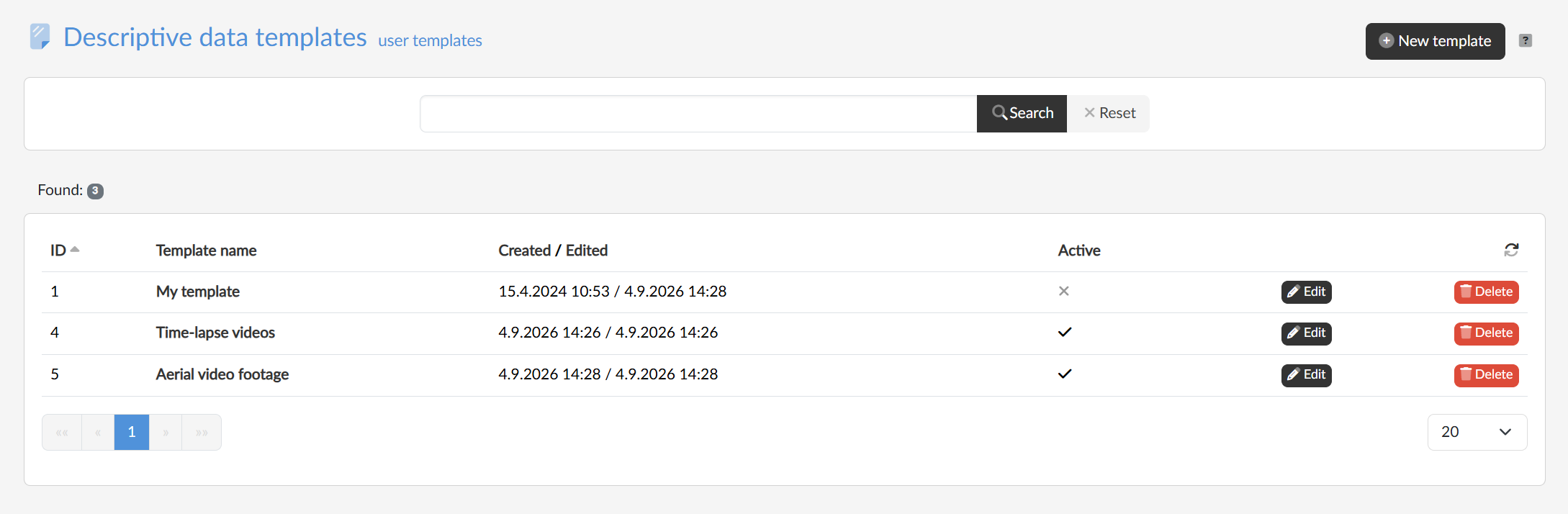
The listing of templates
In the listing we see our own templates — the ID, the name of the template, the dates of creation and last edit and the Active flag. Clicking the name of the template or the Edit button opens an existing template for editing, and the Delete button removes the template.
Setting up a new template
We set up a new template with the New template button in the top right. The template form contains the Template name, under which we will be choosing it, and then the same fields as the descriptive data of media: the name, description, tags, optional tags, spoken audio and its language, the authors, the author’s e-mail and workplace, the licence, the year of publication and the note. We fill in only what the template is supposed to pre-fill.
Substitution tokens
Into any text field we can place the code of a token, which will be replaced after the template is applied with a value from the context of the media file in question. The following are available:
- {filename} — the name of the uploaded file without the extension
- {filetype} — the type / extension of the uploaded file
- {file} — the full name of the uploaded file including the extension
- {date} — the current / today’s date
- {datetime} — the current / today’s date and time
- {username} — the name of the logged-in user
- {userid} — the ID of the logged-in user
An overview of the tokens is also given directly in the header of the template form, as a reminder.