On the opening page of the stream detail — the Overview tab — we see a summary of the state of the stream on the left.
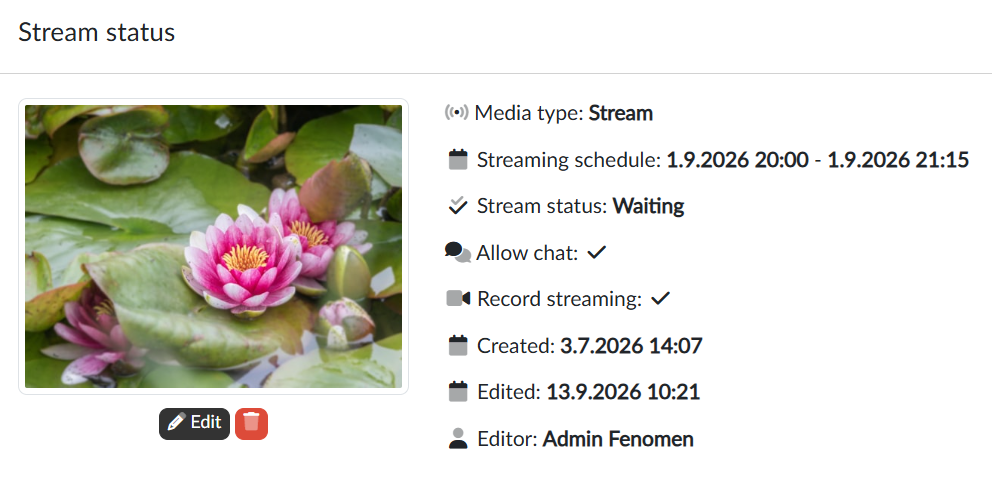
The most important items here are:
- Streaming schedule — the time window during which the owner/editor of the stream will broadcast.
- Stream status — Waiting for a planned broadcast, In process for the duration of the transmission and Ended once the broadcast has finished.
The card further shows whether chat is allowed for the stream and whether the broadcast is being recorded, and below them the dates of creation and last edit and the name of the editor.
At the bottom of the card we have a link to the public page of the stream ready; with the  icon next to it we copy it to the clipboard, and clicking it opens the page in a new tab. The link is available as soon as the stream is set up, so we can send it to the viewers in advance.
The preview image
Once a new stream has been set up, a default image appears on the page, which will be used on the public pages of the portal. It can be changed in the dialog we open with the Edit button, by uploading our own preview image in JPG or PNG format. Here we recommend keeping the 16:9 aspect ratio and a size of at least 640x360, ideally matching the real dimensions of the video frame. When preparing our own graphics, it is worth bearing in mind that the image will appear both in a reduced version in media listings (roughly 300px wide) and at full size on the detail page.
With the bin icon  we delete the inserted preview again.
Changing the streaming schedule
On the right-hand side of the screen we can still adjust the planned broadcast: change the From and To times and switch Allow chat and Record streaming on or off. The changes take effect only after we press the Save button.
Adding the stream to a channel
Below the streaming schedule we see which channels the stream is included in, and with the Add channel button we publish it straight into another of the channels we have access to.
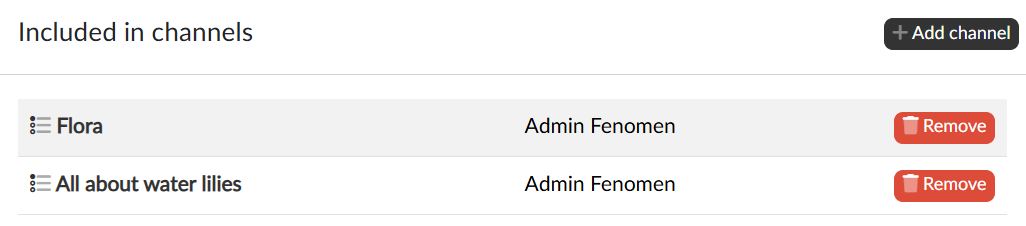
Clicking the name of a channel takes us to its editing, and the Remove button takes the stream out of the channel.