Clicking the Content tab in the channel detail opens the page where we manage the media files of the channel and add new ones.
The channel content
The table listing shows the media files included in the channel and their properties: the media type, name, length, author and editor, the state of the encoding and of the editing of the descriptive data, the protection setting and the date of creation or of the last edit. The content of a channel can be formed by any media of the supported types — audio  , video
  , but also a playlist
  or a stream
  .
.
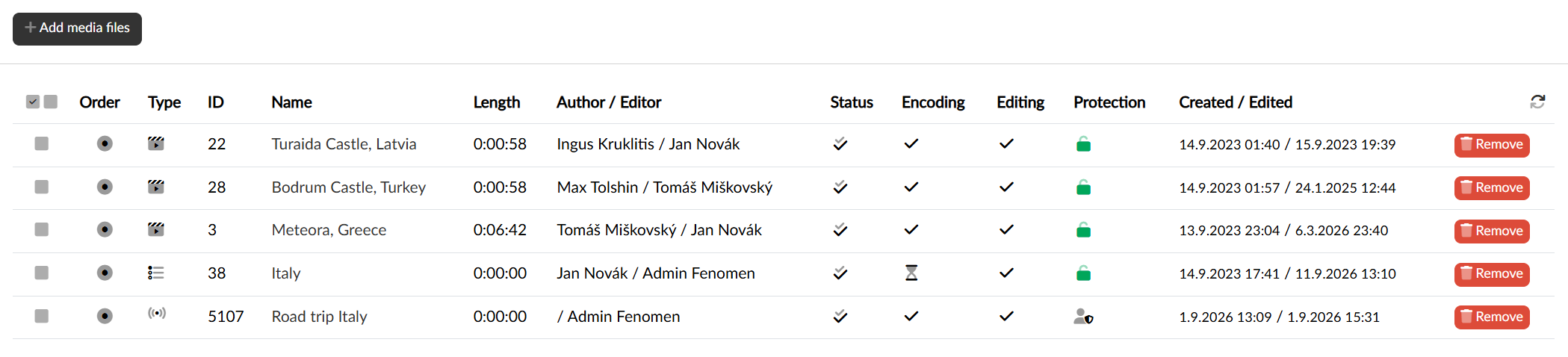
With the Remove button at the end of the row we take the file out of the channel; the checkboxes in the first column include the rows among the bulk actions, from where the selected media can be removed at once.
The order of the media
The listing is sorted by the order in which the media will appear on the channel. We change the order by dragging the target icon in the first column with the mouse; the dragged row is placed before the row over which we drop it.
The state of the media files
Only files in the  “ready for playback” state will actually be available on the channel. We therefore pay attention to the indication in the Status column, or in the Encoding and Editing columns. We get quickly to editing the media file in question by clicking its name directly in the table.
The security of the media on the channel
The right to play a media file is evaluated on each media file separately, so including it on a channel does not affect its security in any way. Including it on a channel only makes it easier for users to find it.
The content of a channel can therefore be any media file published on the portal, and media of users other than the owner of the channel can be published on the channel as well. The owner of the media file has to allow it, though — the Allow viewing on other channels option on the Publishing and security tab of the media in question serves that purpose.
Publishing a media file
Publishing a media file into the content of a channel is possible from two sides:
-
On this page, that is, from the context of the channel, where we need to look up the media file we want to publish on the channel. The Add media files. button serves that purpose.
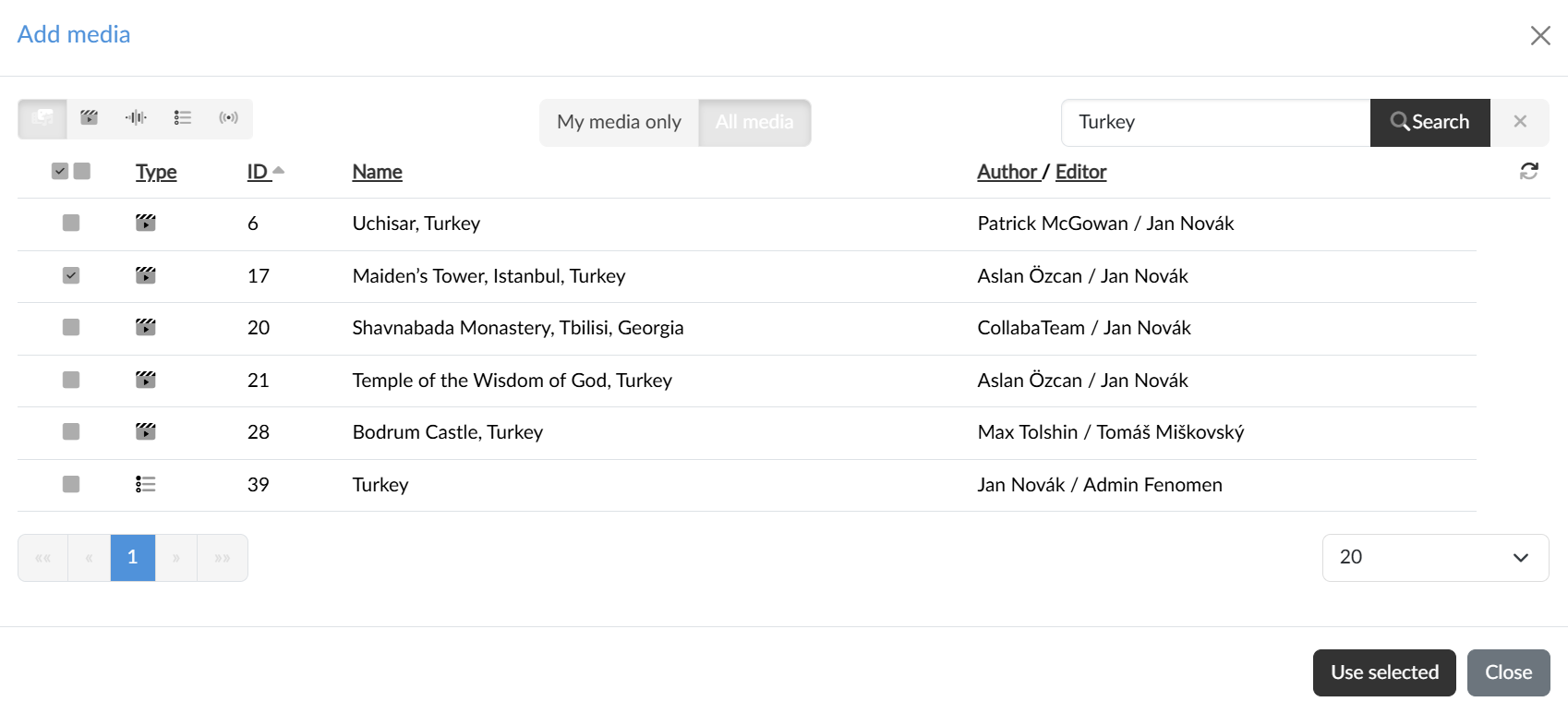
The checkboxes in the dialog listing select individual files, the pair of icons in the header selects or deselects the whole page of results, and the Use selected button adds them to the channel.
The dialog offers filters by type and ownership, searching and the option of sorting; even so, searching among a large number of media can be relatively inconvenient. In that case we can publish media to the channel the other way:
- From the detail page of the media file (or the playlist or the stream), that is, from the context of the media, where the media file is clearly determined and in the dialog we choose the channel the media file is to be published on. Given that there are relatively fewer channels than media, this procedure may be more convenient.