On this page we put together the protection setting that we will then transfer onto media files with a single click. At the top we edit the Name of the template, and with the Active checkbox we decide whether the template is offered in the Apply template offers.
On the left-hand side of the screen we switch on Apply the media protection setting if we want the template to switch the basic protection level as well, and we choose one of the four levels:
- Private — visible only for the author/owner
- Non-public — does not appear in the search on the portal, but you can open it if you have the direct URL
- Protected — there are specific rules for viewing and playing it
- Public — it appears in the search and can be played freely, including on third-party websites (embedded player)
On the right we then refine the chosen level with rules. The offer adapts according to the chosen level. If we leave Apply the media protection setting switched off, all the rules are offered and the template does not change the protection level.
Refining the rules
Each setting has two checkboxes one below the other. The upper one, Apply …, says whether the template concerns this setting at all; the lower one says which value the template is to set, and it appears only after the upper one has been switched on.
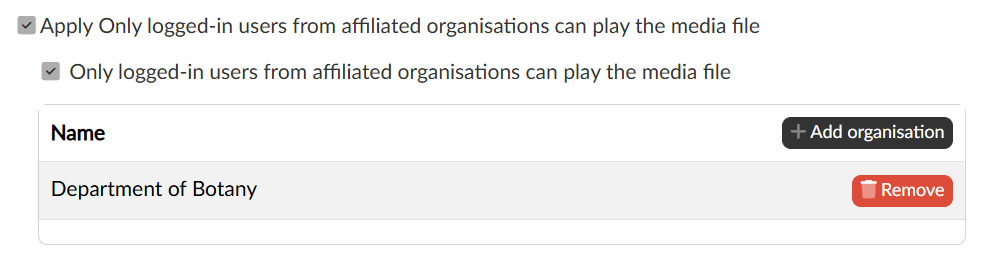
Settings where we leave Apply … switched off stay unchanged on the media. We can thus prepare a template that handles a single thing — for instance only the allowed organisations — and does not touch the rest of the setting.
Rules with a list of items
Some rules work with a list of specific items: the allowed organisations, IP rules, user lists and external servers. After such a rule is switched on, a table opens below it, into which we add items with the Add button and from which we remove them with the Remove button at the end of the row. We thus save specific organisations or user lists into the template as well.
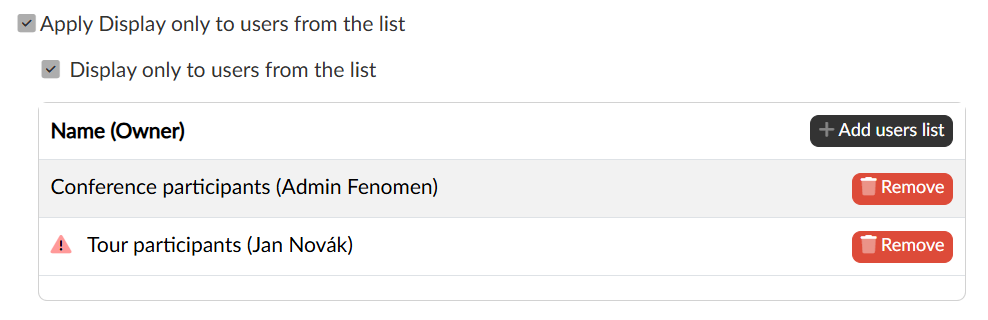
If there is a warning triangle next to a row, the assigned record no longer exists in the database — typically the portal administrator deleted it in the meantime. We remove such a row from the template and replace it with another one if needed.
Limiting the time period
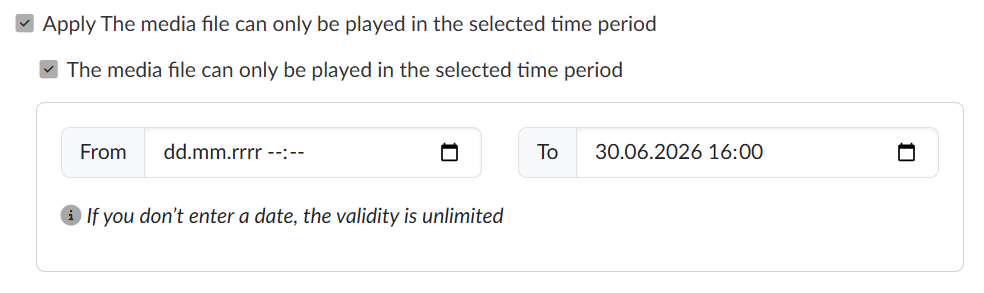
After the rule is switched on we fill in the From and To fields; a date left empty means unlimited validity, so we can enter only the beginning, only the end, or both. The date is saved into the template as a fixed value, not relatively — a template with a period until the end of the semester is therefore usable only until that date, and afterwards the date needs to be moved.
Saving the template
We save the finished setting with the Save button in the footer, or with Save and close, which takes us back to the listing of templates. Leaving the page without saving discards the changes.