The page contains a basic tool for editing the subtitles of the media file in question. We can create the subtitles here directly, or import them in one of the supported formats (VTT, SRT).
The upper part of the page contains a timeline synchronised with the player on the left. On the right there is a list of subtitles with the start time, the end time and the text; with the Language used drop-down list we switch which language version the texts are shown in. The player shows the saved subtitles straight away — its subtitles menu offers all the language versions, so we can check the result without having to go to the public page of the media.
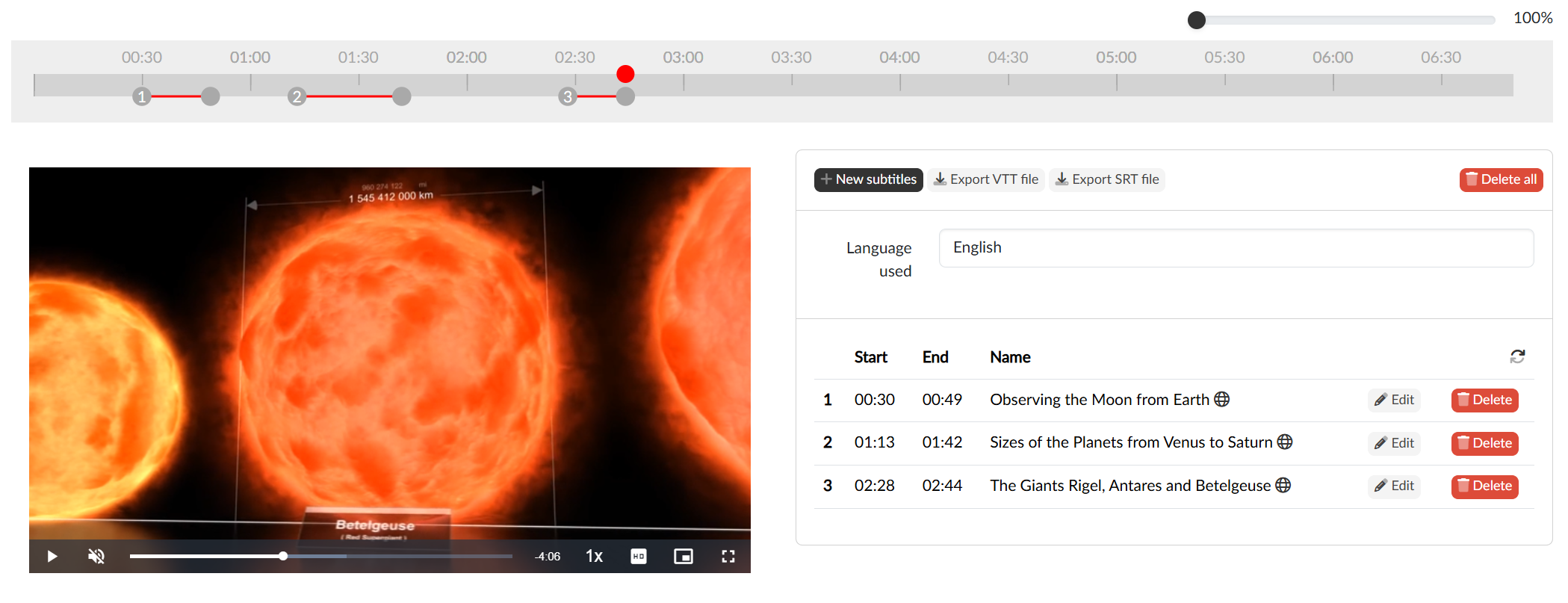
We create new subtitles with the New subtitles button. A subtitle is always created starting at the currently set time and ending five seconds later. To make the display time of the subtitle longer or shorter we drag the end indicator of the subtitle on the upper timeline; the times can also be entered manually in the form, as can the text. We save a finished subtitle with the Create button, open an existing one for editing with the Edit button and remove it with the Delete button (or all of them at once with the Delete all button).
Localising the subtitles
The individual language versions of the subtitle text are available under the globe icon in a dialog where we also have an automatic translation available (using the integrated DeepL service) — either for one language with the Translate button, or for all of them at once with the Translate all button.
Where the subtitles appear
Subtitles are part of the public form of the media — they appear in the player on the media page and on the playlist page on the portal, and equally in a player embedded into a third-party page. The viewer switches them on and changes between languages directly in the player.
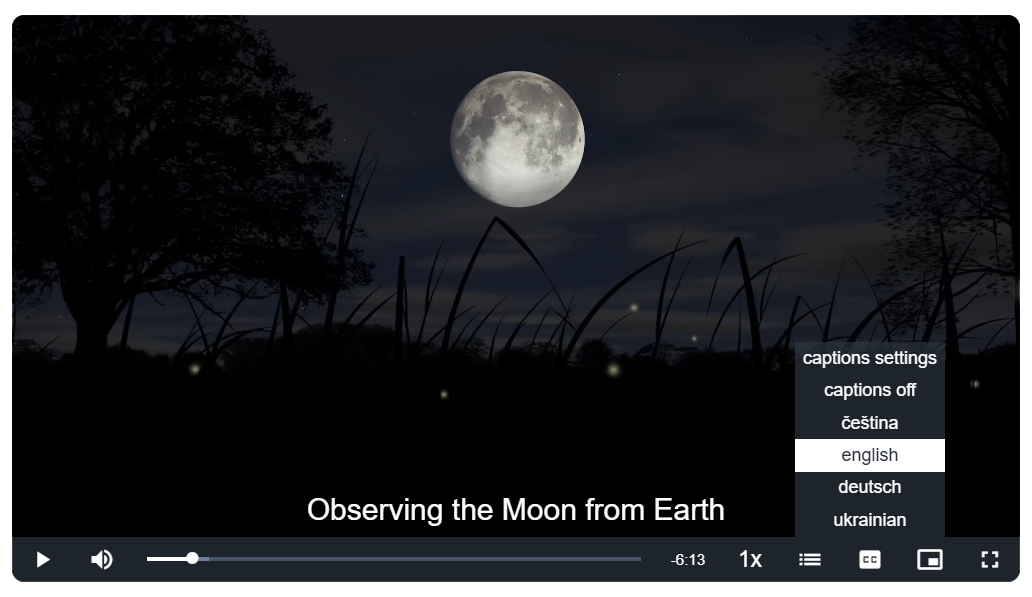
The player offers only those languages in which at least one subtitle is filled in, so a language we left empty is not offered to the viewer at all.
Import and export
The editor imports and exports subtitles in the supported formats. With the Export VTT file and Export SRT file buttons we download the subtitles in the language currently shown in the editor; both buttons are offered as soon as the media has at least one subtitle.
Importing subtitles is currently possible only into an empty editor (imported subtitles cannot be combined from several files), so the Import subtitles button disappears as soon as the media has some subtitles. In the dialog we choose the .vtt or .srt file, the language the subtitles will be saved into, and the format; we then start the import with the Import button.