This page is the central point for uploading media files — we add a video or an audio file from our computer here and the portal creates a media item from it, which we then edit and publish. We open the page from the left-hand menu with Upload video/audio.
We can upload both video and audio files. The list of supported formats may change; we can see it at the top of the screen in the Available file extensions line.
Uploading files
The page provides an upload component that lets us add one or more files, either by picking them in the file dialog (the Select file button) or simply by dragging the files into the area of the component.
When we add several files, the component puts them into a queue and processes them one after another; each file is uploaded in chunks, which makes it possible to pause the upload and start it again. The number of files is not limited, but their size together with the speed of our internet connection determines how long the upload takes.
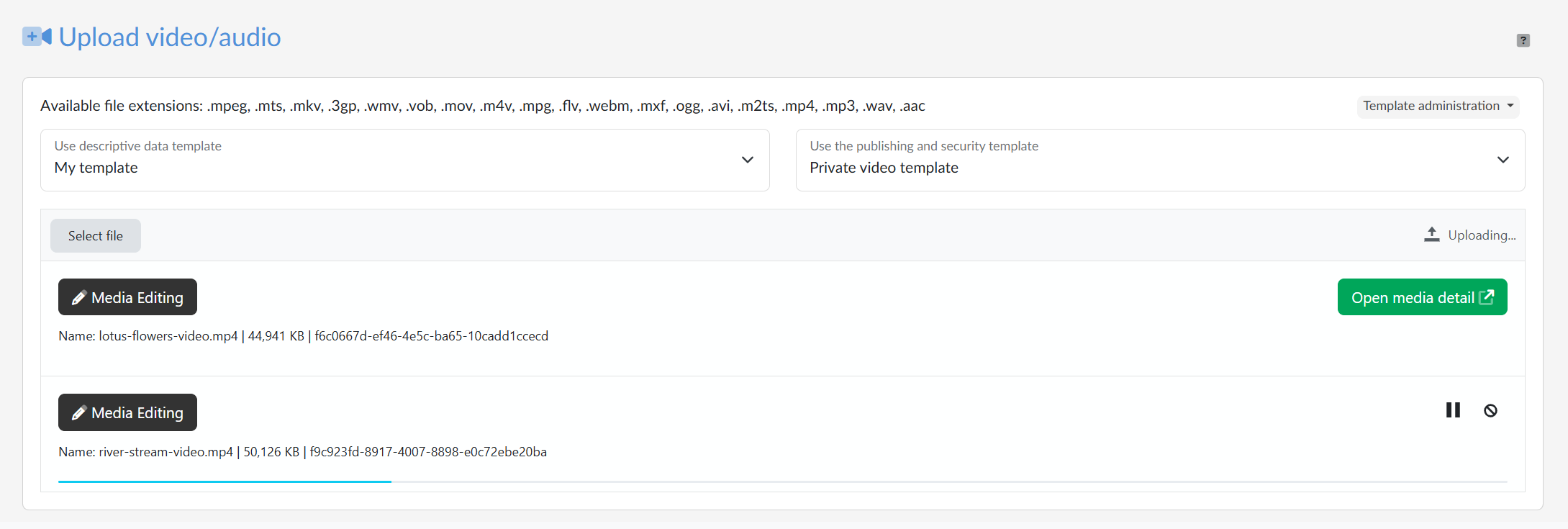
From the moment the first chunk of the file is successfully sent to the server, a database record of the media file exists, and we can edit its Descriptive data and its Publishing and security rules while the upload is still running — the Media Editing button next to each file in the queue serves that purpose.
Once the whole file has been uploaded, the message File uploaded successfully. Processing in progress. appears together with the green Open media detail button, which takes us to the Overview tab of that media item. The detail opens in a new browser window or tab so that it does not interfere with the uploading of the remaining files. The media item is still waiting to be processed, so it does not appear on the portal immediately.
Templates
When we upload files repeatedly or handle a larger number of files of a similar kind, templates that are applied to the uploaded files automatically can help. Above the upload component we have two selectors:
- Use descriptive data template — pre-fills the name, description, authors, tags and other descriptive data
- Use the publishing and security template — sets where and to whom the media item is published
Besides ordinary text values, descriptive data templates also allow the use of tokens (codes in curly brackets) which are replaced, when the template is applied, with data from the context of the uploaded file: {filename} (the file name without the extension), {filetype} (the extension), {file} (the full file name), {date} and {datetime} (the date, or the date and time of the upload), {username} and {userid} (our user name and ID).
Templates can be
- selected before we start uploading the files — they are then applied automatically to all files added afterwards,
- applied in the Media Editing dialog, or later in the media detail — separately for each uploaded file and each type of template.
The templates available to us are managed on separate pages, Descriptive data templates and Publishing and security templates, where we can define our own personal templates; the quickest way to them is the Templates administration menu above the upload component on the right. In addition, an administrator can define templates available to all users at the level of the whole portal. In the selectors we then tell them apart as My templates and Public templates.