While playing the video or audio, the player on the media file page makes it possible to go through the slides of an attached presentation in sync with the playback; those slides are managed in this agenda.
Into an empty presentation we can insert slides in one of the supported formats:
- New slide / Upload slides — one or more JPG or PNG images
- Upload presentation — an MS PowerPoint presentation (PPTX)
- Upload PDF — a presentation in a PDF file
Once the file or files have been uploaded, the timeline is divided automatically and the whole duration of the video or audio is covered evenly by the individual slides. To refine the synchronisation of the presentation and the media we can drag the marks on the upper timeline; moving a mark always shifts the beginning of the slide and the end of the previous one at the same time, so that the presentation keeps covering the whole time of the media.
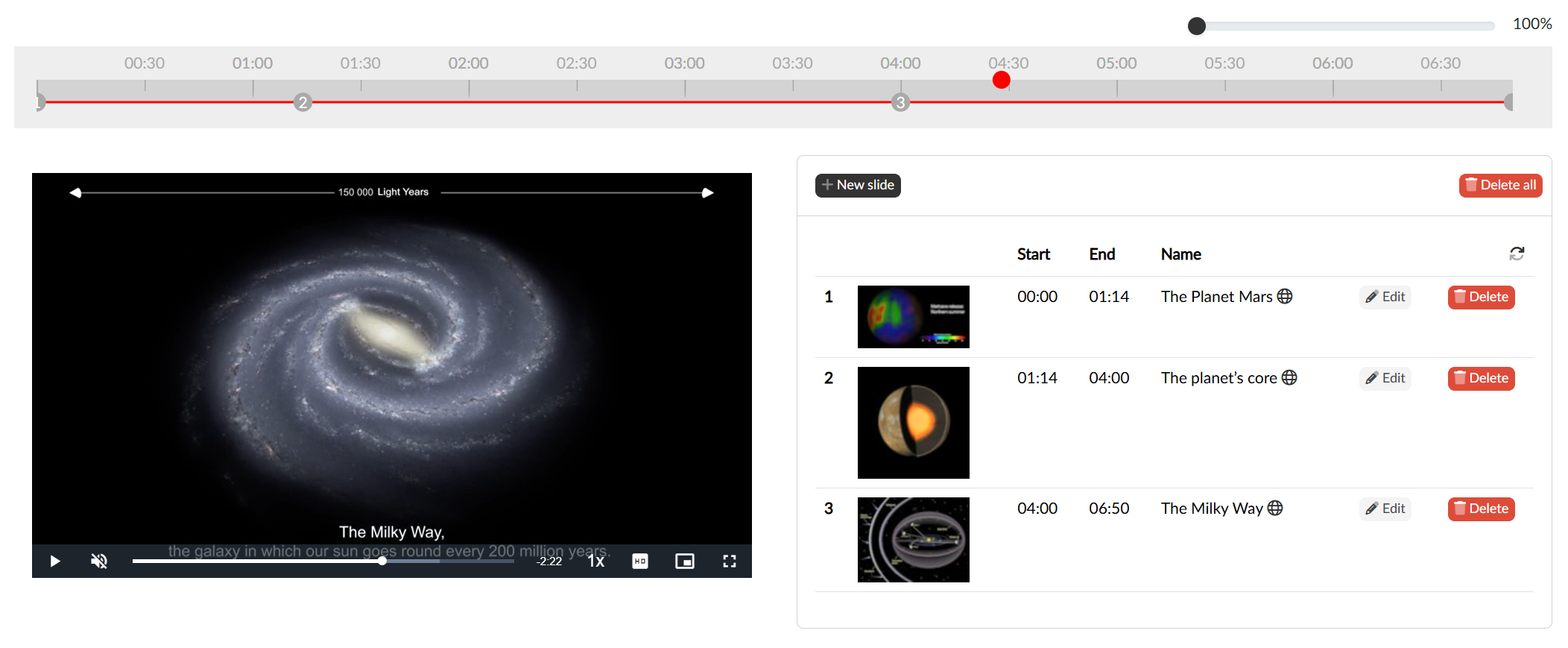
As soon as the editor already contains slides, it is no longer possible to insert another whole presentation or set; slides can only be added one at a time with the New slide button. For an individual slide we enter its beginning, the name (and possibly its language variants ) and the image itself, which we upload with the Choose File button; we then save the finished slide with the Create button.
We open an existing slide for editing with the Edit button in its row, remove it with the Delete button and all the slides at once with the Delete all button.
If we need to change the order of the slides, the individual rows in the table can be dragged with the mouse. Dropping one onto another swaps the rows, and the two slides exchange the times at which they appear.
Where the presentation appears
The presentation is part of the public form of the media: on the media page the slides are shown next to the player and switch by themselves according to the playback time. The viewer can hide them and show them again with the Hide presentation / Show presentation button, and clicking a slide preview in the listing jumps to the corresponding place in the recording.