Chapters help us make it easier for users to find their way around longer media files. Chapters are named time marks which are offered to the user on the player page as a list of items that make it possible to jump to the relevant time of the audio or video.
The upper part of the page contains a timeline synchronised with the player on the left. On the right we see a list of the chapters already created, with an order number, a preview, the time and the name.
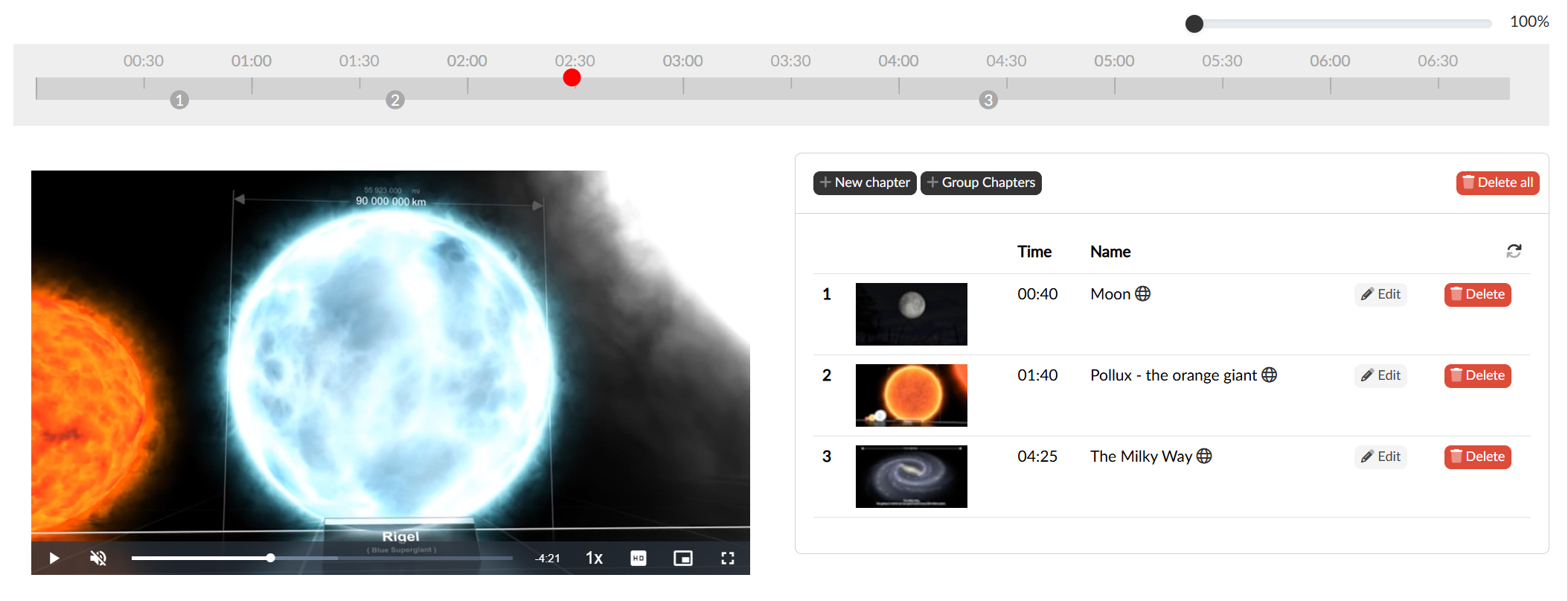
We create a new chapter with the New chapter button. A chapter is always created at the currently selected time, and a preview of the relevant frame is attached to it when it is created. What remains is to fill in the Chapter name and save the chapter with the Create button.
To change the starting time of a chapter we drag the relevant mark on the upper timeline. The numbering of the marks, which is the same on the timeline and in the table, should make it easier to find our way. If we need to place a mark precisely, the zoom slider above the timeline helps — it stretches the timeline up to twenty times, so even a short section can be hit.
Clicking a mark (or the Edit button in the table row) opens the chapter for editing, where the time can also be entered manually, the name changed and a new preview generated. We remove an individual chapter with the Delete button, and all of them at once with the Delete all button.
The globe icon opens the dialog for editing the language versions of the chapter names.
Creating chapters in bulk
If we have the list of chapters prepared in advance, we insert them all at once with the Group Chapters button. In the text field we write each chapter on a separate line - the time in the hh:mm:ss format and the name separated by a vertical bar.
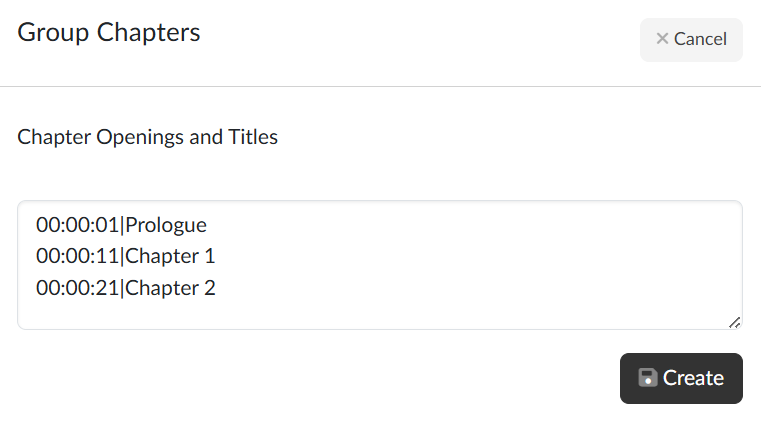
The Create button then creates all the chapters from the list at once, again including the previews.