On the opening page of the media file detail — the Overview tab — we see an overview of the state of the media on the left. The main piece of information here is the indication of whether the media file is ready for playback  , or whether the process has not finished yet
  . If the media is finished, we can play it straight away with the Play button.
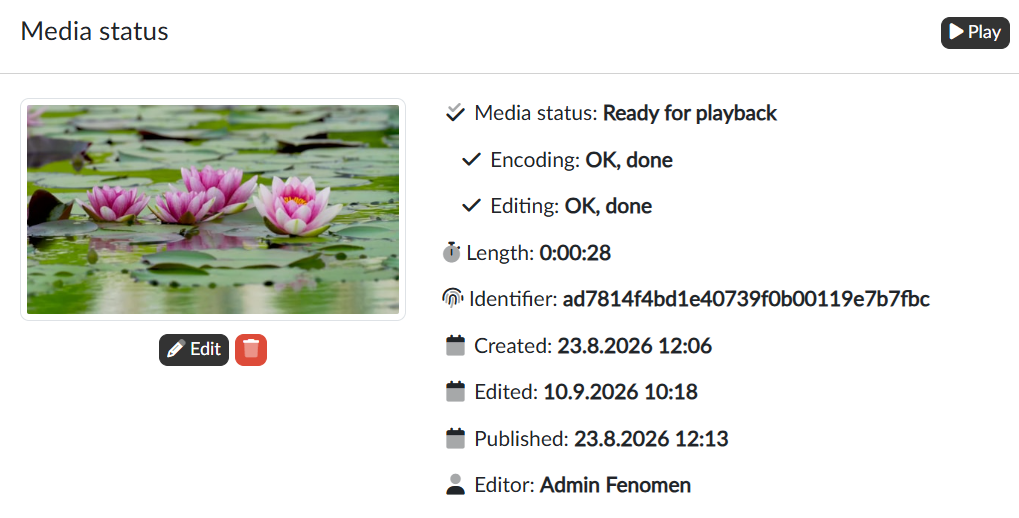
The rows below show whether the following have finished
- Encoding — the process of converting the uploaded media file. This process should finish automatically, but with larger files and/or when several files are being processed at once it can take many hours. If we are in doubt whether the processing is going well, we go to the Profiles tab, where the Encoding record section holds the history of the whole process. If we find an error message there, or the last activity is older than a longer while (several days), we contact the administrator of our portal and ask them to look into it.
- Editing of the mandatory descriptive data — finishing this process is up to the editor of the media in question. The mandatory fields may be defined differently on each portal and on the Descriptive data page they are marked with an asterisk.
If both states are indicated as finished, the overall state of the media file is indicated as “ready for playback”. Below the states we also find the length of the media, its identifier, the dates of creation, last edit and publication, and the name of the editor.
The preview image
Once the encoding process has finished, an automatically generated preview appears on the page, created by taking a frame at 00:01, which will be used on the public pages of the portal. This preview can be changed in the dialog we open with the Edit button, either
- by using a different frame taken from the video — we stop the player at the desired point and then use the Save the current frame button,
- or by uploading our own preview image in JPG or PNG format. Here we recommend keeping the 16:9 aspect ratio and a size of at least 640x360, ideally matching the real dimensions of the video frame. When preparing our own graphics, it is worth bearing in mind that the image will appear both in a reduced version in media listings (roughly 300px wide) and at full size on the detail page.
The button with the bin icon  deletes the inserted preview again.
The link to the media and the sharing codes
At the bottom of the left-hand column we have the Link to the media page on the portal and the Media sharing codes ready, that is, the code for embedding the player into a third-party page. We copy both to the clipboard with the  icon. The Go to page button opens the public page of the media in a new tab. The link appears once the media is ready for playback.
Quickly adding to a playlist and a channel
Both playlists and channels have tools on their editing page for adding media in a way where the user stays in the context of the playlist or the channel and looks the media file up by name or another parameter. The media overview offers tools for the opposite situation on the right:
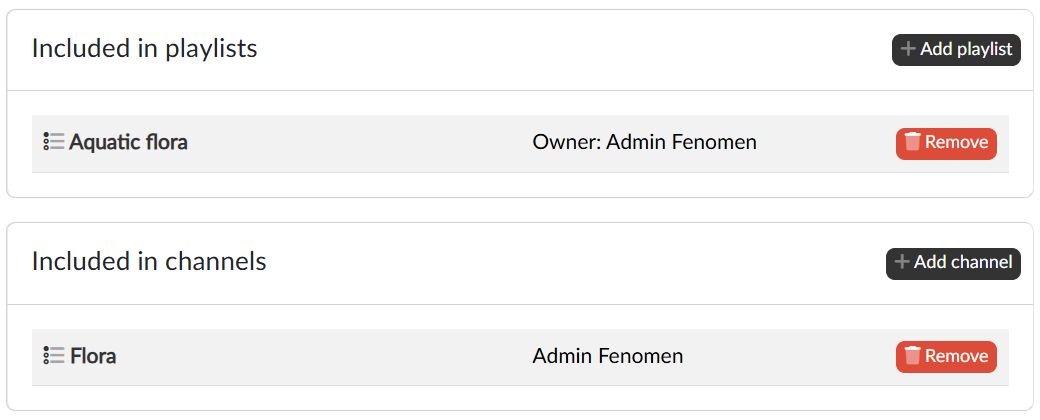
From the context of the selected media file we have information about where the file in question is published, and we can also publish it straight into the playlists or channels available to us with the Add playlist and Add channel buttons. The Remove button takes the media out of the playlist or the channel.