On this screen we can edit the basic properties of the channel:
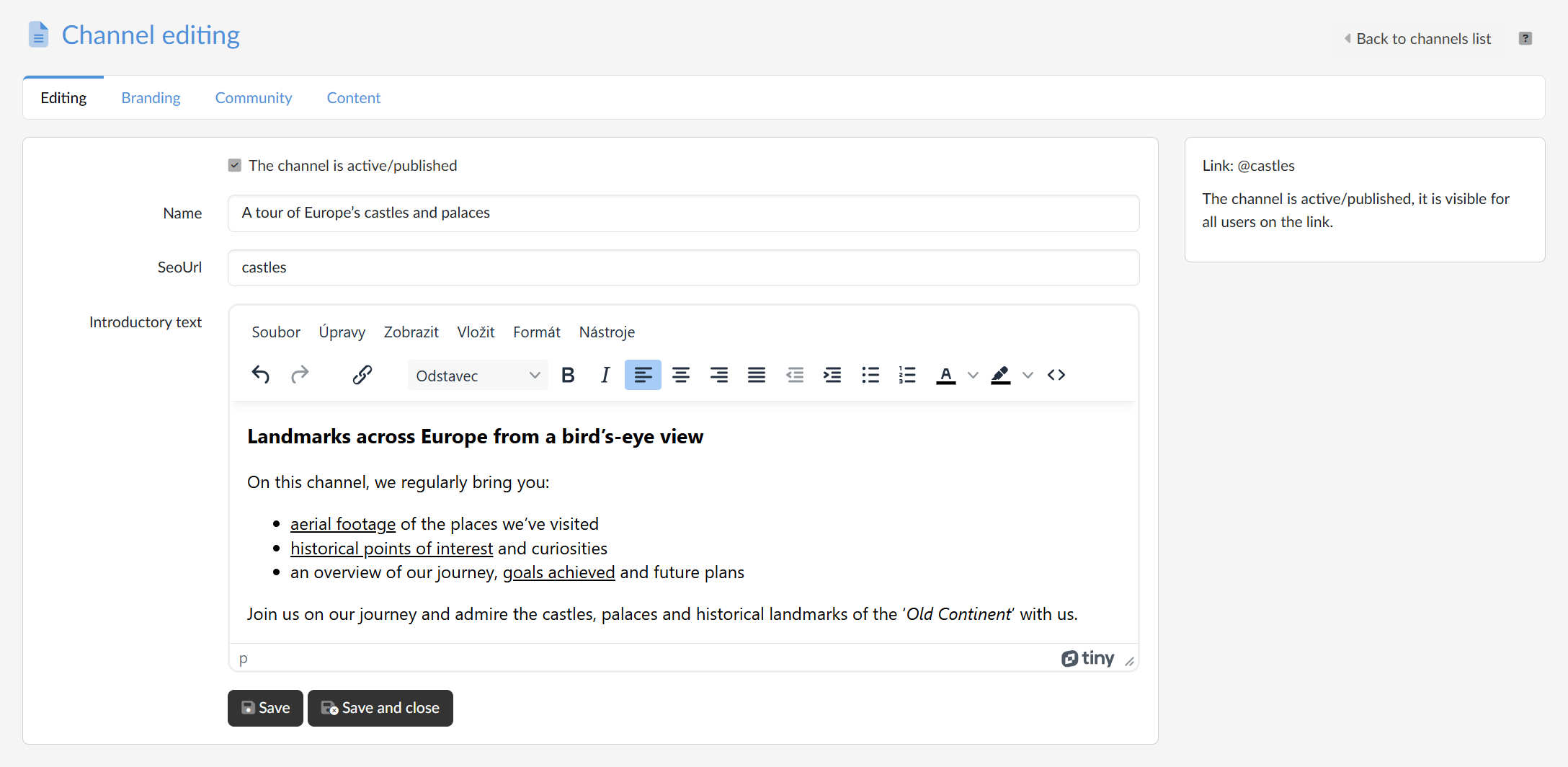
- The “The channel is active/published” checkbox — allows the owner of the channel to prepare the content of the channel in a non-public mode. If it is not ticked (the channel is NOT active / NOT published), only its owner sees it and its content. An active/published channel is available at its address to all users of the portal.
- Name — the main title of the channel.
- SeoUrl — a unique identifier that becomes part of the web address (URL) of the channel. It may, but does not have to, be derived from the name of the channel, but it has to be unique. The URL is then composed in the form https://portal_domain/@channel
⚠ If we change the SeoUrl of a channel that is already in use, the portal checks on saving that the new SeoUrl is not taken, and otherwise refuses the change. We should also count on the fact that links to the old address that have already been sent out will stop working.
- Introductory text — the text of the introductory article of the channel, which we write in an editor with formatting (styles, bold and italic type, alignment, lists, colours and links). With the
 button for displaying the source code we get straight to the HTML.
⚠ Images cannot be inserted into the introductory text, the editor on this screen offers only text formatting and links. The visual form of the channel is handled on the Branding tab.
We save the changes we have made with the Save button, or with Save and close, which takes us back to the channel listing. To the right of the form we have a card with the link to the channel and information about whether the channel is visible at this address to all users, or so far only to its owner.
⚠ The channel can be edited by its owner, by a member of the community with the Collaborator role and by the portal administrator. A contributor can only publish content into the channel — see the Community tab.