FenomioStream Broadcaster is a broadcasting app for Windows and macOS with which we broadcast a live stream from a webcam and a shared screen. Unlike general streaming software (for example OBS Studio), it does not need to be set up: it is launched directly from the portal, takes over the server address and the stream key by itself, and also starts and ends the broadcast on the portal by itself.
Installation and launch
We download and launch the app from the Streaming page, on the Broadcast from FenomioStream Broadcaster tab. Someone without an account on the portal receives a link for the broadcaster from the author of the stream, which opens a page with the same two steps.
- With the Download for Windows or Download for macOS button we download the installer and install the app. The installation does not require administrator rights.
 The Broadcast from the app button launches the app. The browser asks whether it may open FenomioStream Broadcaster. After we confirm, the app connects to the portal, loads the details of the stream and checks the connection to the server; once done, it shows the ready to broadcast status.
The app therefore always opens from the portal for one particular stream. For another stream we launch it again with the Broadcast from the app button of that stream.
The app window
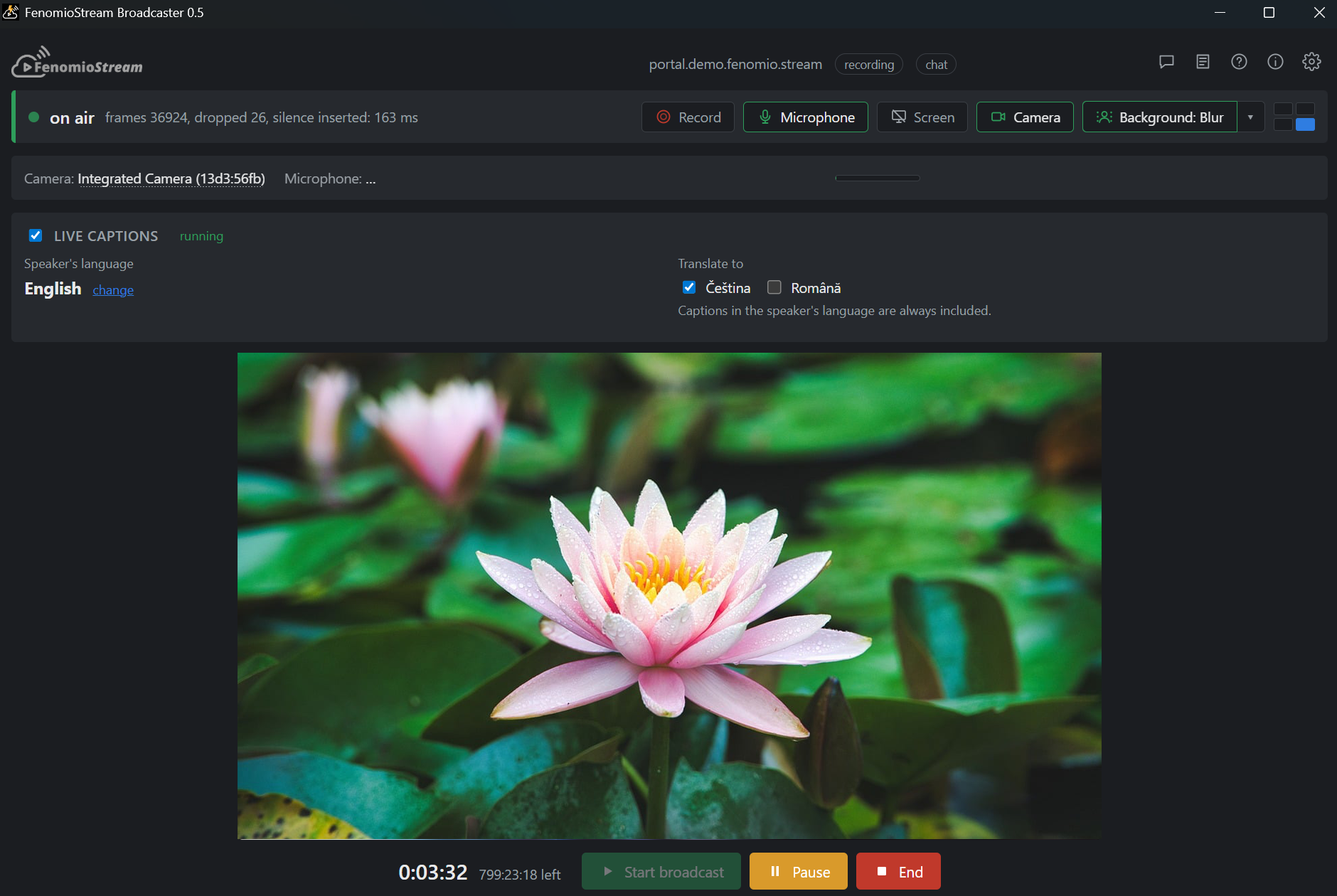
- Header — the name of the stream, the address of the portal and badges: recording (the portal is recording the broadcast), chat (the stream has chat allowed), unencrypted (an encrypted connection could not be established and the broadcast goes unencrypted) and local recording (the broadcast is also being recorded on our computer). On the right there are icons for chat with viewers, the detailed log, help, information about the app and settings.
- Status bar — the broadcast status and the switches that decide what is in the picture; they take effect immediately, even during the broadcast:
- Record — recording the broadcast on this computer as well (see below).
- Microphone — switching the microphone on and muting it.
- Screen — screen sharing; the app offers which screen or which window we want to share. With a shared screen the computer's sound also goes into the broadcast, so viewers will hear, for example, a video being played.
- Camera — switching the camera on and off. When a screen is shared, the camera is in a corner of the picture; without sharing it fills the whole picture.
- Background — blurring the background behind the speaker, or one of three images we prepare in the settings; we choose them with the arrow next to the button.
- Finally, the four positions selection determines which corner the camera frame is in.
- Camera and microphone — the name of the camera and microphone in use, with a level meter. Clicking a name lets us choose another device, even during the broadcast.
- Live captions — shown only if the portal allows them (see below).
- Preview — the picture exactly as it goes to the viewers.
- Clock and buttons — how long we have been on air and how much time is left until the scheduled end of the stream (once it is exceeded, the overrun), and the Start broadcast, Pause and End buttons.
The course of the broadcast
- When the window opens, the camera and the microphone switch on. We start sharing the screen with the Screen button, check the picture in the preview and the sound on the level meter. Meanwhile the viewers see on the public page of the stream that the broadcast has not started yet.
 At the planned time we press Start broadcast. The app starts broadcasting and at the same time switches the stream on the portal to the In process status — the viewers see the player. So we do not use the Start streaming button on the portal.
 The Pause button pauses the broadcast for a while: instead of the picture the viewers see the pause image and the sound is off. With the Resume button we return to the broadcast.
 At the end we press End and confirm. The app stops broadcasting and ends the stream on the portal; if a recording is being made for it, its processing starts.
If the network drops out during the broadcast, the app reconnects to the server by itself and shows in the status bar how the connection is being restored. We do not need to do anything.
Chat with viewers
If the stream has chat allowed, we open it with the chat icon in the header; the number on the icon shows unread messages from viewers. In the chat window we also see the number of viewers. We write a message into the field at the bottom and send it with the Send button.
Live captions
If the portal has live captions allowed, the window contains the Live captions box. Ticking the box next to its heading switches captions on: the app transcribes speech from the microphone into captions and the viewer displays them in the player.
- The Speaker's language is pre-filled according to the language of the app; with the change link we choose another one. Captions in the speaker's language are always included.
- In the Translate to section we choose the languages the captions should be translated into at the same time. The viewer then chooses the caption language in the player.
- We can change the languages even during the broadcast; the captions drop out for a moment and then start again.
Recording on this computer
With the Record button in the status bar we switch on recording of the broadcast on our computer as well — in case the network or the stream fails. We can switch it on and off at any time; each switching on during the broadcast creates a new file. After the app starts, recording is always off.
Recordings are saved to the Videos\FenomioStream folder, which we can change in the settings. If there is not enough space on the disk, recording does not start and the header shows the local recording off warning; the broadcast, however, does not end.
Settings
We open the settings with the gear icon in the header. The app remembers them.
- App language — Czech, English or, for example, Romanian.
- Image shown when both camera and screen are off — what the viewer sees instead of the picture; black by default.
- Image while paused and Text while paused — what the viewer sees while the broadcast is paused.
- Background behind the speaker — up to three images that can be used instead of the blurred background.
- Recording on this computer — the folder for recordings (Open folder, Change folder…, Default).
- Hide the app window from screen sharing and screenshots — on by default.
When something does not work
- The camera does not switch on — the app shows the reason and advice below the header. Most often another app is holding the camera (Teams, Zoom…): we close it and switch the camera on again.
- A new version of the app — if one is available, the app points it out and offers the Download button. If our version is already too old, the broadcast does not open until we update the app.
- A less powerful computer — if the computer does not meet the recommended requirements, the app warns that the broadcast may stutter. Broadcasting is still possible.
- Detailed log — with the icon in the header we open the record of the app's activity; it is useful when solving problems with support.